

 Español
 Català
 Deutsch
 Français
 Português
 Italiano
 Nederlands
 Polski
Where the button is and when you see it
Return forms open from the menu Octopia › Fulfillment › Returns. The Octopia part of the menu asks for the Octopia User permission: without it, you do not see that part. The button is on the FFM Returns screen, and it is there in all four published versions of the module: Odoo 17, 18, 19 and 20.
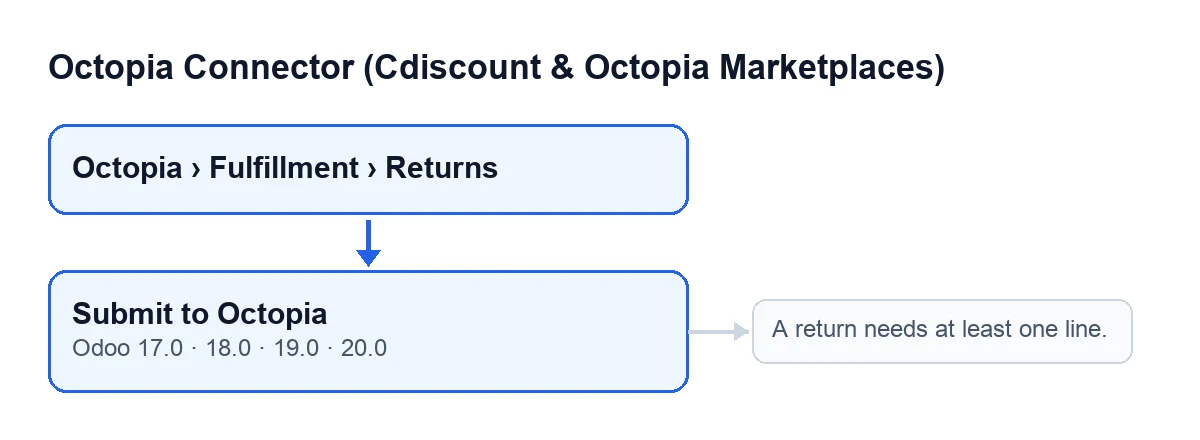
The button has a single visibility condition: it is hidden when the Return ID field has a value. With the default values that field is empty, so the button shows. Put the other way round: once a return has a Return ID, it no longer offers the button.
The button label depends on the language of your Odoo. This is how it reads in each language that has a published translation:
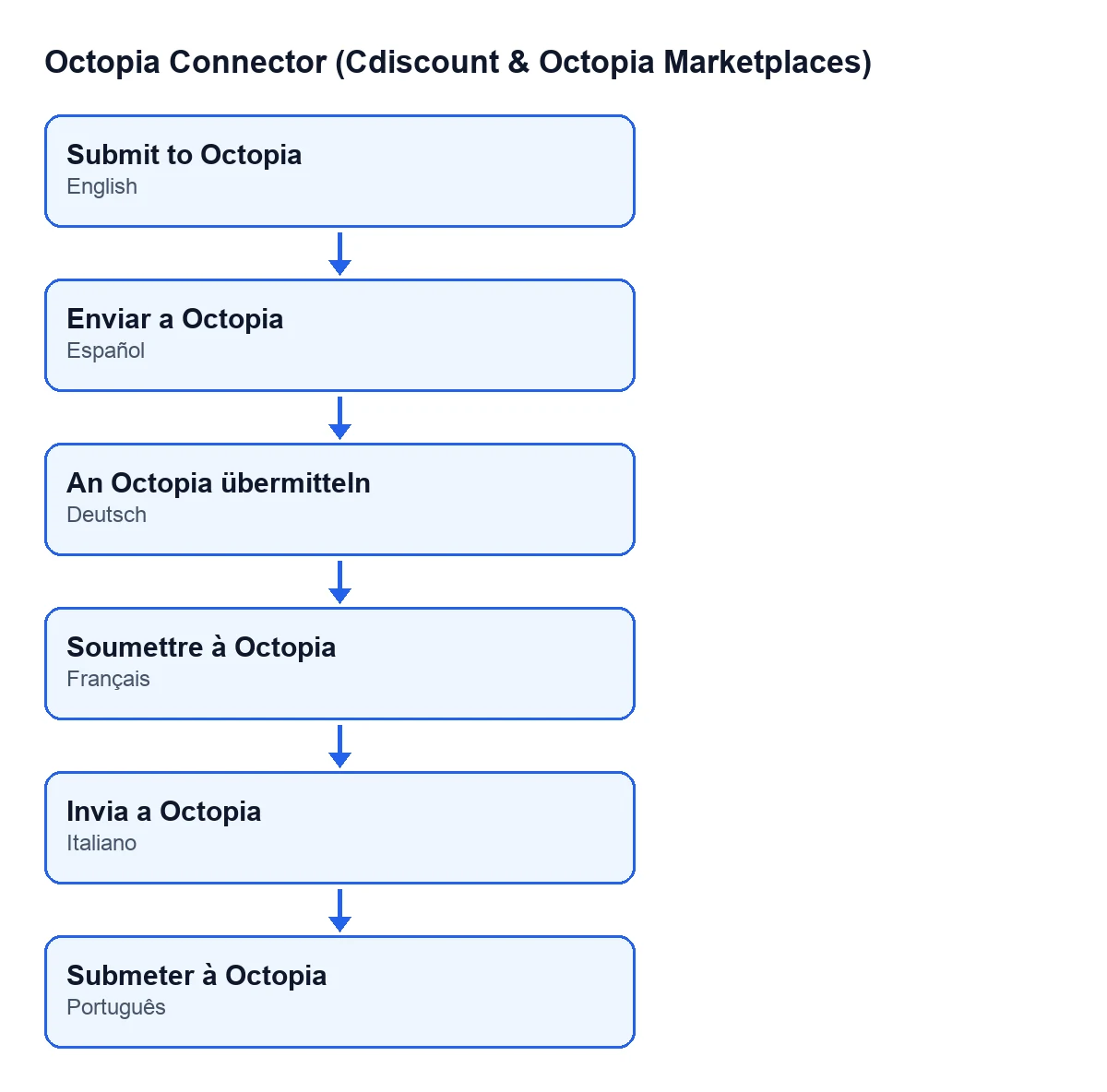
| Odoo language | Button label |
|---|---|
| Spanish | Push to Octopia |
| German | An Octopia übermitteln |
| French | Soumettre à Octopia |
| Italian | Invia a Octopia |
| Portuguese | Submeter à Octopia |

A worked case from start to finish
Example Illustrative case: the company and its figures are made up to explain the flow.
Hogar Norte is an invented shop that sells kitchenware on Cdiscount and handles its FFM returns from Odoo. A customer sends back a product from a shipment that has already gone out. Marta, in customer service, opens the return form under Octopia › Fulfillment › Returns and fills in what that form shows: the Octopia Account, the Outbound Shipment the product came from, a Comment if she wants to leave a note, and the Lines of the return.
First she clicks Submit to Octopia with the form still without lines: the action stops and A return needs at least one line. appears. Nothing has been sent to Octopia. Marta adds a line under Lines and clicks again. This time the module builds the request, sends it with the chosen account and, if the reply carries the return identifier, saves it in Return ID. It then moves the return to the created status and writes a line in the account's sync log. Because Return ID now has a value, the button disappears from the form.
What the case shows: the check the module makes beforehand is that there are lines, and the trace that the creation reached Octopia is the value in Return ID.
What the button does, in order
- If the return already has a
Return ID, the method skips it and does nothing. - It checks that the return has lines. If it has none, it stops with
A return needs at least one line.and goes no further. - It builds the request with the external identifier of the
Outbound Shipment, the reason for the return and, for each line, the product, the quantity and the condition of the product. - If
Commenthas text, it adds it to the request. If it is empty, the request goes without a comment. - It connects through the return's
Accountand asks Octopia to create the return. - If the reply includes the return identifier, it saves it in
Return ID. - It moves the return to the created status.
- It writes a line in the account's sync log: of the fulfillment type, with a successful result, with the outbound shipment in the text and one record counted.
That log is not exclusive to the button. Two scheduled tasks also write to it. The task Octopia: refresh referentials (categories, brands, carriers, typologies) runs every seven days and is active on install, but it only writes to the log when a step of the refresh fails: it then leaves an error saying the referentials refresh was incomplete. The task Octopia: pull discussions (ToTreat queue) runs every 15 minutes, is active on install and also leaves its entry in that log.
The message that can stop the button
| Message | When it appears | What to do |
|---|---|---|
A return needs at least one line. | When you click Submit to Octopia on a return with no lines. | Add at least one line under Lines on the form and click again. |
The check comes before the request is built and before Octopia is contacted. When the message appears, that return is not sent and nothing the button was going to write is saved: not Return ID, not the status change, not the log line.
Questions that come up when using it
Is the comment sent if I leave it empty?
No. The module only adds the comment to the request when Comment has text.
Which account does it send with?
The one in Account on the return form. You also see it in the FFM Returns list, next to the Outbound Shipment.
What if the reply has no identifier?
The module still moves the return to the created status and still writes the log line, but Return ID stays empty. According to the button's visibility condition, with that field empty the button stays visible.
Can the same return be sent twice?
It depends on Return ID. If the return already has one, no: the button is not shown and the method skips it. If it stayed empty because the reply carried no identifier, the button is still visible and clicking it again sends the request to Octopia once more.
What you need to use it
The module is a one-off payment per version and is published on Odoo Apps for Odoo 17, 18, 19 and 20; each Odoo version is bought there separately, and its price is on its listing. It also needs the FlexigoTech Cloud subscription, Connector plan: €49/month or €490/year excluding VAT, for up to 3 accounts on the platform (the Pro plan is €98/month or €980/year excluding VAT, for up to 10).
The connection goes through FlexigoTech Cloud, which stores the credentials encrypted, monitors the synchronisation and emails you if it fails; if the platform changes its API, the module and the service are adapted. Without a subscription, or with the service suspended, what the subscription provides stops; your data stays in your Odoo.
The module has other buttons with their own articles, such as Open conversation and Declare to Octopia.
If you need help with Octopia and Odoo
FlexigoTech implements Odoo 17, 18, 19 and 20 and builds connectors and custom integrations. If you want to review how your FFM returns fit into your Odoo, get in touch.
Keep reading
Checked in the connector's source code (version 20.0) and the linked sources
Sources
- Module source code: flexigobe_octopia_connector 20.0 (4848da6a): views/octopia_fulfillment_views.xml
- Module source code: flexigobe_octopia_connector 20.0 (4848da6a): models/octopia_fulfillment.py
- Module source code: flexigobe_octopia_connector 20.0 (4848da6a): models/octopia_referential.py
- apps.odoo.com/apps/modules/20.0/flexigobe_octopia_connector
- flexigotech.com/en/services.html
- flexigotech.com/precios.html