

 Español
 Català
 Deutsch
 Français
 Português
 Italiano
 Nederlands
 Polski
The case: Marta presses Accept Order and Odoo stops
Example Illustrative case: the company and its figures are made up to explain the flow.
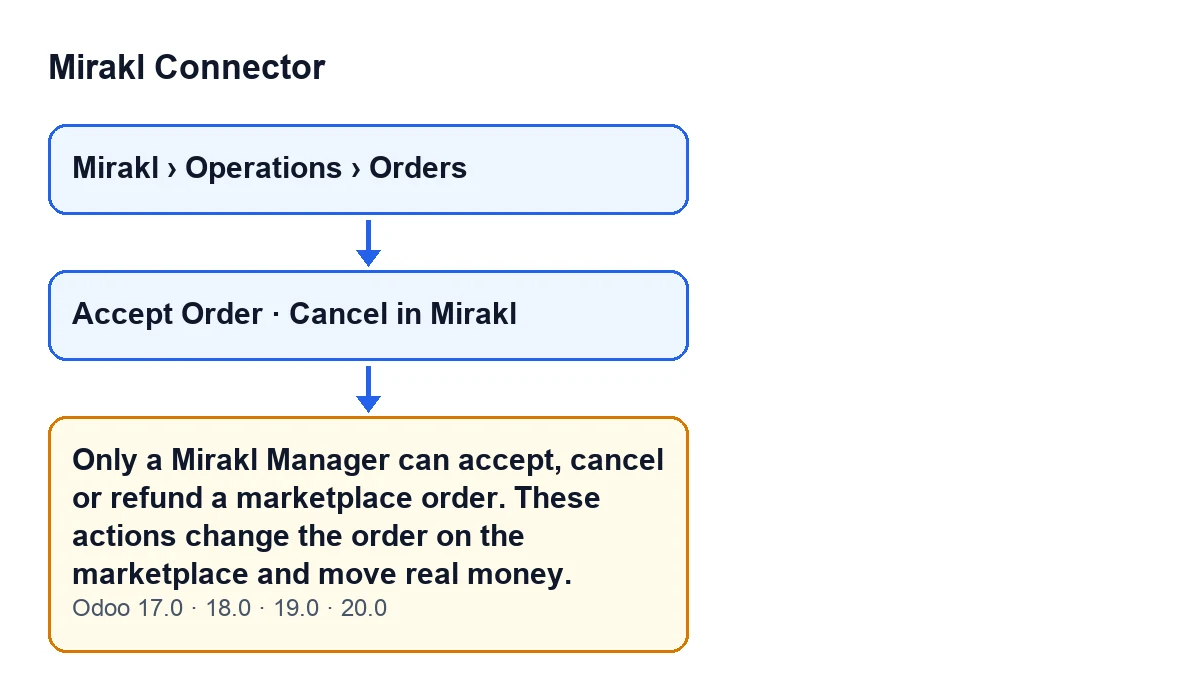
Distribuciones Norte, a company invented for this example, already has Mirakl Connector installed. Marta works there with an internal Odoo user. She opens Mirakl › Operations › Orders, goes into an order, presses Accept Order and gets this warning: Only a Mirakl Manager can accept, cancel or refund a marketplace order. These actions change the order on the marketplace and move real money.
Marta assumes something has gone wrong with the order or the connection. Yet the warning mentions neither: it is about who pressed the button.

When exactly it appears
The module checks, on the server, whether the user who pressed the button belongs to the Mirakl Manager group. If not, it raises the warning and the action stops: the warning appears instead of the action going ahead. If the user does belong to the group, the check passes and the action carries on.
The warning is in the published code of all four Odoo versions the module covers: 17, 18, 19 and 20.
The code itself explains why the check is made on the server. The buttons that change something on the marketplace (accepting, cancelling, refunding) are restricted in the views by groups, but a view attribute is not a security boundary: any internal user could call the method over RPC, and the access permission gives internal users write access to Mirakl orders. That is why the group is required again on the server.
Buttons the warning can appear with
These are two buttons on the order form that reach the group check:
| Button | When you see it | What happens if you are not a Mirakl Manager |
|---|---|---|
Accept Order | Hidden if Acceptance State shows the order is already accepted, or if the order does not require acceptance (the Requires Acceptance field) | The warning appears and the action stops |
Cancel in Mirakl | Hidden when State is cancelled; with the default values (a pending order) it is visible | The warning appears and the action stops |
Seeing a button does not mean the action will go ahead: the group check happens when you press it. If you cannot see one of the buttons, it may be down to the conditions in the table.
How to fix it, step by step
- Confirm the warning is this one, in full:
Only a Mirakl Manager can accept, cancel or refund a marketplace order. These actions change the order on the marketplace and move real money. - Decide whether that action is yours to take. According to the warning itself, accepting, cancelling or refunding changes the order on the marketplace and moves real money.
- If it is not yours, ask someone in the
Mirakl Managergroup to open the same order and press the button. - If it is yours, ask whoever administers the users in your Odoo to add you to the
Mirakl Managergroup. - Go back to the order, press the button again and check that the warning no longer appears.
Questions people ask when they see it
Is it a connection problem with Mirakl?
The warning is about the user's group: it is raised when the person pressing the button does not belong to Mirakl Manager. It says nothing about the connection or the order data.
What happens when it appears?
The action stops: the warning appears instead of the action going ahead. It can appear, for example, when you press Accept Order or Cancel in Mirakl.
Is hiding the button in the view enough to protect the action?
According to the code, no: a view attribute is not a security boundary, which is why the group is also required on the server.
Does it also happen in Odoo 17, 18 or 19?
The warning is in the published code of 17, 18, 19 and 20.
What to take from the case
- The warning is about permissions, not data: before reviewing the order, look at which group the person pressing the button belongs to.
- Belonging to
Mirakl Manageris what counts. Being an internal Odoo user, like Marta, is not enough. - Be deliberate about who joins the group: the actions it protects change the order on the marketplace and move real money.
- Whether a button is visible depends on the view conditions; whether the action goes ahead depends on the user's group, which is checked on the server when the button is pressed.
How FlexigoTech can help
FlexigoTech implements Odoo 17, 18, 19 and 20 and builds custom connectors and integrations; if you are assigning permissions for the team that handles marketplace orders, we can go through it with you. Mirakl Connector is published on Odoo Apps for 17, 18, 19 and 20, and it needs a FlexigoTech Cloud subscription (Connector plan: €49 a month or €490 a year, excluding VAT). You can find the Odoo Apps listing and the module page.
Without the subscription, or with the service suspended, what the subscription provides stops; your data stays in your Odoo.
Keep reading
Checked in the connector's source code (version 20.0) and the linked sources
Sources
- Module source code: flexigobe_mirakl_connector 20.0 (aa05e537): models/mirakl_order.py
- Module source code: flexigobe_mirakl_connector 20.0 (aa05e537): views/mirakl_order_views.xml
- apps.odoo.com/apps/modules/20.0/flexigobe_mirakl_connector
- flexigotech.com/en/services.html
- flexigotech.com/precios.html