

 Español
Cdiscount's terms ask for the shipping confirmation to carry the tracking number. And shipping is measured: the seller commits to a shipping rate of 97.5% or more, and if the seller does not report the shipment once the buyer has validated the order, the order is cancelled automatically and that rate gets worse. That is why the declaration should go out with the delivery rather than depend on someone remembering.
Turn on declaration at validation
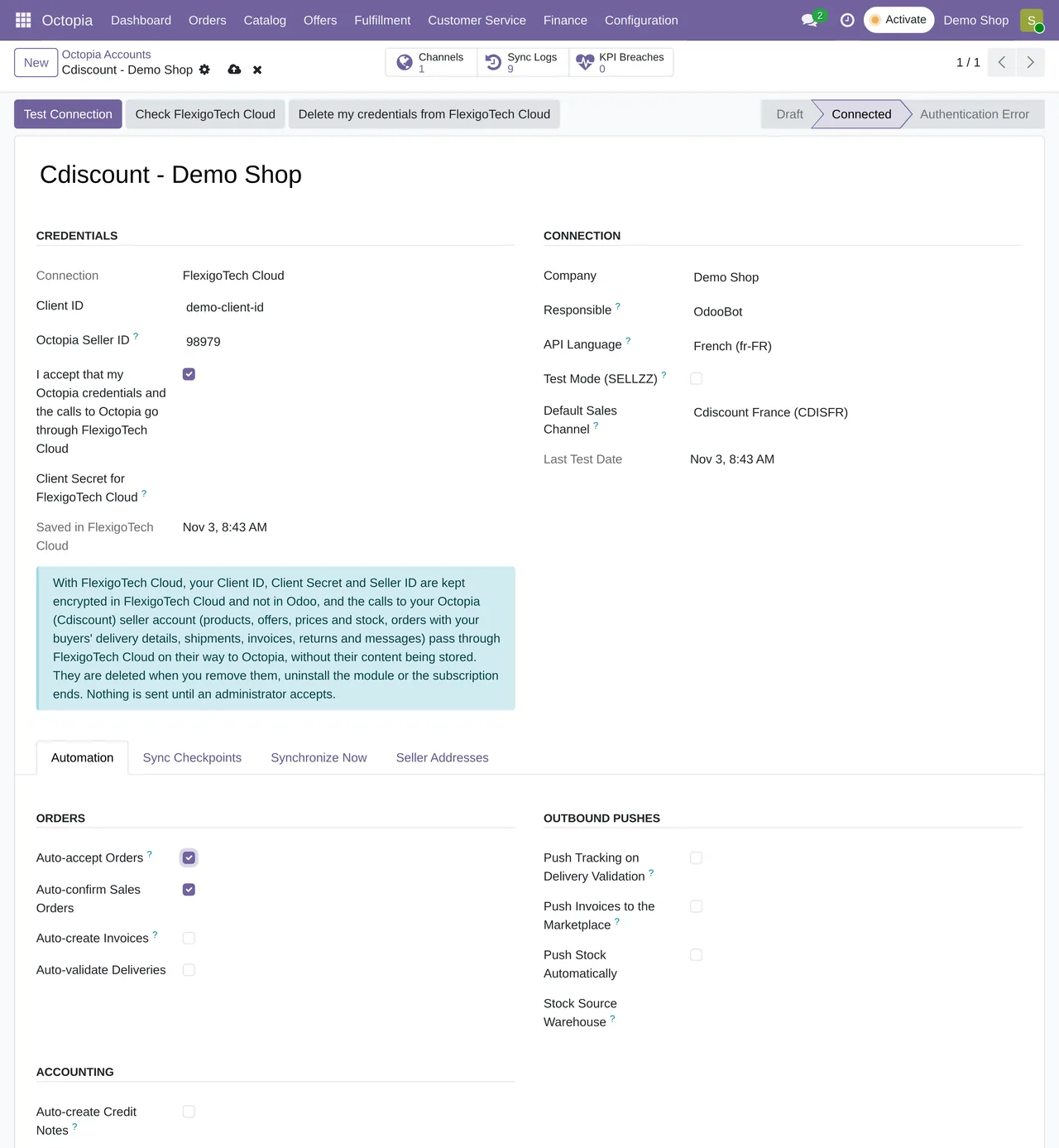
- Open your account under Octopia › Configuration › Accounts.
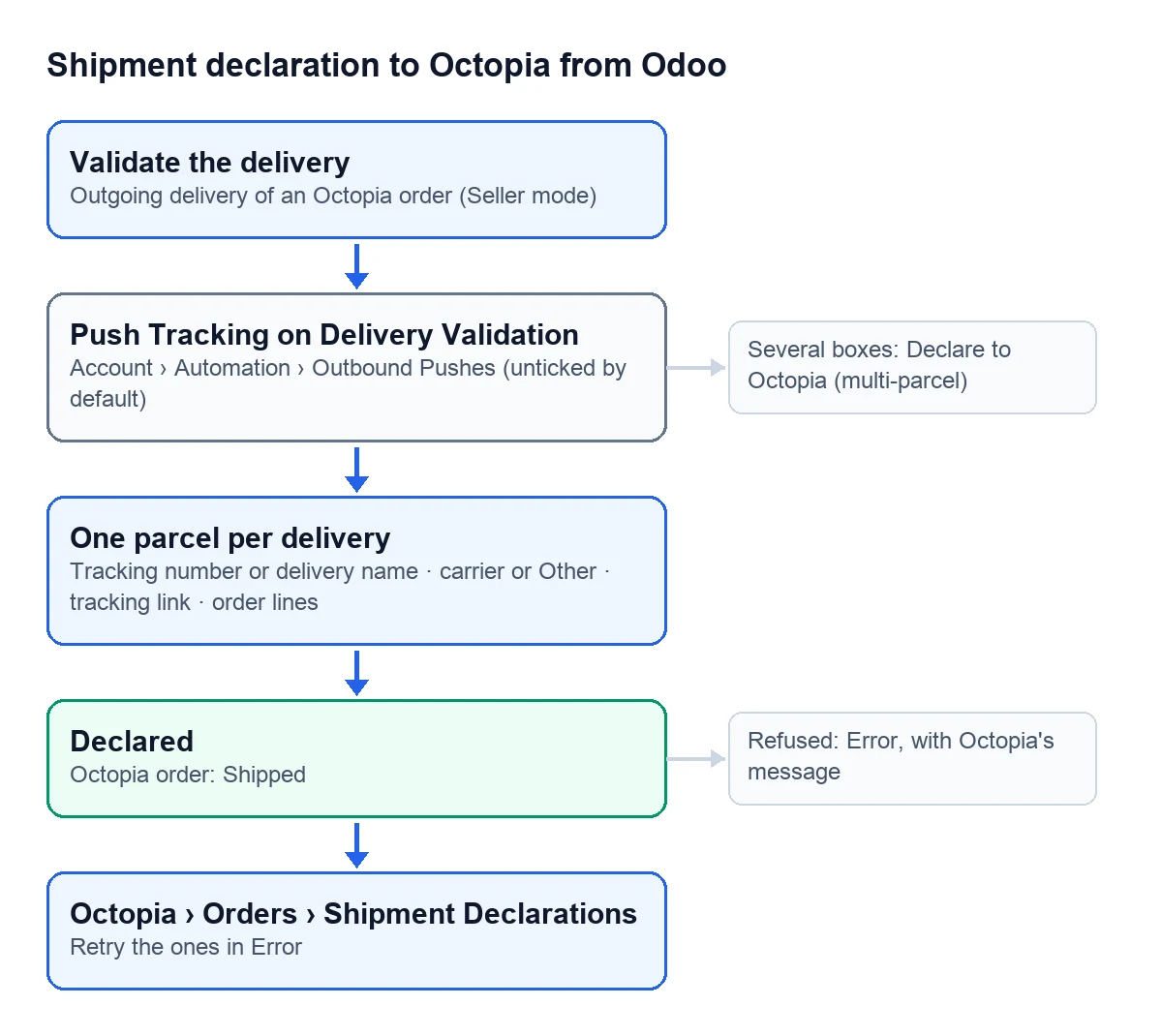
- On the Automation tab, Outbound Pushes group, tick "Push Tracking on Delivery Validation". It comes unticked.
- Save. From then on, every outgoing delivery of an Octopia order that you validate is declared to Octopia.
What Odoo sends in each declaration
The automatic declaration sends one parcel per delivery:
| Data | Where it comes from |
|---|---|
| Parcel number | The delivery's tracking number; if it has none, the delivery's name |
| Carrier | The Octopia carrier linked to the Odoo one; otherwise the Odoo carrier's name; with no carrier, "Other" |
| Tracking link | The carrier's, when it provides one |
| Lines | The Octopia order lines whose products leave in that delivery, when they are not all of them |
With no lines, Octopia treats the whole order as shipped. That is why, on a partial delivery, Odoo sends only the lines of the products that leave.
When Octopia accepts the declaration, it is marked Declared and the Octopia order moves to Shipped. The sync log records it as "Shipment declared for …".
There are two cases Odoo does not declare. A delivery already declared for the same order is not sent again. And orders that are not in seller mode (Seller) are left out, because the fulfilment service ships them.
If the declaration fails
The delivery is validated anyway: the warehouse is never held up by an Octopia failure. The declaration is marked Error, with Octopia's message, and the sync log keeps "Shipment declaration failed for …".
- Open Octopia › Orders › Shipment Declarations.
- Look for the ones in Error and read the message: it shows the parcel that was sent and what Octopia answered.
- Fix what is missing on the delivery, for example the tracking number.
- Click "Retry".
Declare several parcels by hand
When an order leaves in several boxes, the automatic declaration falls short, because it sends a single parcel. For those cases:
- On the validated delivery, click "Declare to Octopia". "Declare Shipment (multi-parcel)" opens.
- The first line already carries the delivery's tracking number, or its name, and the carrier.
- Add one line per box, with its number, its carrier and its tracking link.
- If a box does not hold the whole order, pick on its line the order lines inside it.
- Click "Declare to Octopia".
If the carrier is not on Octopia's list, type it in "Carrier (free text)". Octopia accepts it, but the field's help warns that tracking may work less well.
The wizard stops with a clear message when something is missing:
Add at least one parcel.when there are no lines.Every parcel needs a parcel number.when a box has no number.Every parcel needs a carrier (mapped or free text).when a box has no carrier.Fulfillment orders ship themselves -- declaring one would be refused (409) by Octopia.when it is a fulfilment order.
Can I declare without a tracking number?
Odoo lets you: the automatic declaration then uses the delivery's name as the parcel number. But for Cdiscount that is not valid tracking. Its terms ask you to confirm the shipment with a valid tracking link and number; otherwise the order counts as not shipped and is cancelled, with a refund to the buyer, when the maximum preparation time runs out. They also forbid giving a wrong tracking number. Add the tracking number to the delivery before you validate it.
Where can I see what was sent?
Under Octopia › Orders › Shipment Declarations. Each declaration keeps the parcels exactly as they went out to Octopia, the date and, if it failed, the error.
Keep reading
Checked in the connector's source code (version 17.0, 18.0, 19.0 and 20.0) and the linked sources
Sources
- Module source code: flexigobe_octopia_connector · 17.0 6c9bfab · 18.0 aff6741 · 19.0 d15e273 · 20.0 27d9c64: models/octopia_account.py (auto_push_tracking), models/octopia_order_actions.py (button_validate, _declare_for_picking)
- Module source code: flexigobe_octopia_connector · 17.0 6c9bfab · 18.0 aff6741 · 19.0 d15e273 · 20.0 27d9c64: models/octopia_order_actions.py (_carrier_label, _build_parcels, _send_declaration); docs.47 de hechos/octopia.json (POST /orders/{orderId}/shipments, sin orderLineIds se envía el pedido entero)
- Module source code: flexigobe_octopia_connector · 17.0 6c9bfab · 18.0 aff6741 · 19.0 d15e273 · 20.0 27d9c64: models/octopia_order_actions.py (octopia.shipment, action_retry), views/octopia_order_actions_views.xml
- Module source code: flexigobe_octopia_connector · 17.0 6c9bfab · 18.0 aff6741 · 19.0 d15e273 · 20.0 27d9c64: wizard/octopia_shipment_wizard.py, views/octopia_completeness2_views.xml
- marketplace.cdiscount.com/wp-content/uploads/2025/08/2025.08.25-CGMAD-FR.pdf