

 Español
 Català
 Deutsch
 Français
 Português
 Italiano
 Nederlands
 Polski
What the task does and how often it runs
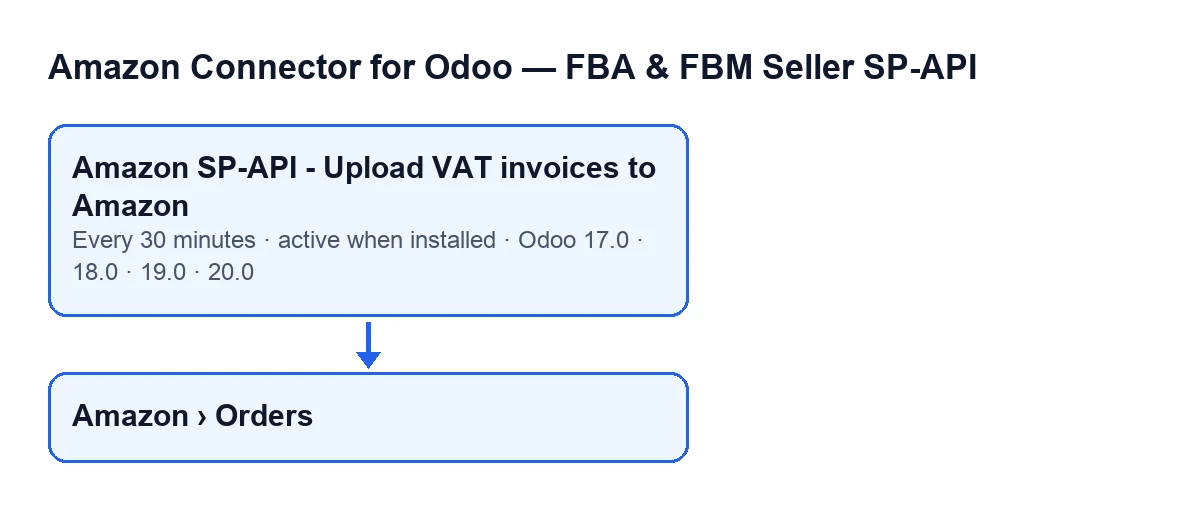
The task works on the Amazon orders the module stores and takes at most 100 orders per run. It runs every 30 minutes and is active on installation. It exists in the 17.0, 18.0, 19.0 and 20.0 branches; in Odoo 17.0 it is set to repeat without end. What follows describes the code of Odoo 20.0.

Details of each run
It only looks at accounts that have switched the upload on
The first thing a run does is look for Amazon accounts with invoice upload enabled. If there are none, it stops there without checking a single order. The upload is optional: it is off by default and is switched on in the Amazon account configuration. The account fields are explained in this article on the SP-API account.
It only picks up posted invoices that have not been uploaded
From those accounts, the run selects orders whose customer invoice is posted and which have no upload date yet. If the account limits the upload to business orders, consumer orders are left out. The code applies these filters up front on purpose: a draft invoice, or a consumer order on a business-only account, would take up the batch ahead of every other order of every account. And an order that has already been uploaded is not sent again: the task never notifies Amazon twice about the same invoice.
Each run has a cap, and failed orders come after
The cap is 100 orders. Orders with no stored error go first, in order of creation. Only if the cap has not been reached are orders that failed on an earlier run added, starting with the one that has gone longest without an attempt. Each failure writes the order again, so failed orders take turns rather than the same ones coming round every time.
One failure does not stop the run
If the upload of an order fails, the module stores the error text on that order, leaves a warning in the server log and moves on to the next one. The order is not marked as uploaded, so it goes back into the failed queue for a later run.
It saves its progress after every order
After each order, the task saves in the database the marks of what it has done so far. The code explains why: Odoo kills a task that goes past its time limit (120 s by default) and takes its transaction with it; without this save, the next run would send Amazon the same invoices again. Inside automated tests it does not save this way, because Odoo forbids it there.
What it sends to Amazon and what it records
For each order, the module generates the PDF of the posted invoice, uploads it to Amazon and creates a VAT invoice feed with these data: the Amazon order number, the invoice number, the document type (invoice), the total amount and the VAT amount. It uses the order's marketplace or, if the order has none, the account's. Only when the whole submission finishes without error does it write the upload date on the order, clear the previous error and, if the Amazon order has a linked sales order, leave a note in its chatter: Invoice … uploaded to Amazon (VAT invoice feed) for order ….
Finding the task in your language
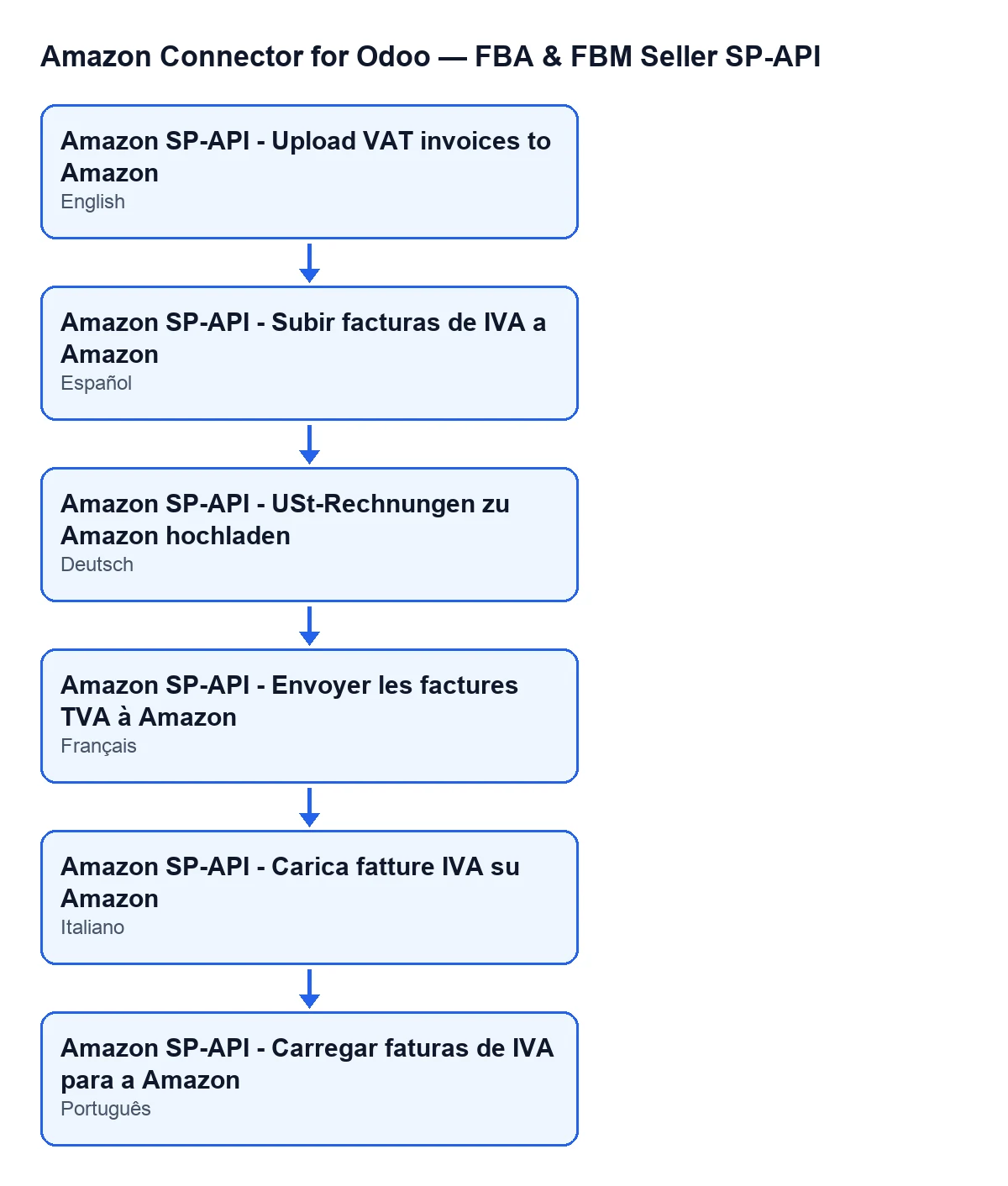
The name of the task depends on the language of your Odoo: with Odoo in English it is Amazon SP-API - Upload VAT invoices to Amazon. The module also ships translations into Spanish, German, French, Italian and Portuguese.
If nothing is uploaded: what to check
Go through what the code requires of each order:
- That invoice upload is switched on for the order's account. To find out which account that is, open the order from the
Amazon › Ordersmenu and look at theAccountandAmazon Orderfields on theAmazon Ordersform.Amazon Orderis read-only. - That the order has a customer invoice and that it is posted: if the invoice is still a draft, the task does not upload it.
- That the account does not limit the upload to business orders if the order is a consumer one.
- That the order has not already been uploaded: once it has an upload date, it is not sent again.
- That there are not more pending orders than the cap of 100: the following runs, every 30 minutes, carry on with the rest.
- That the task is still active: it is active on installation.
To see the Amazon › Orders menu you need permissions: the Amazon level asks for Viewer and so does the Orders level.
Cost and how we can help
The module is a one-off payment per version (published on Odoo Apps for 17.0, 18.0, 19.0 and 20.0) and needs the FlexigoTech Cloud subscription, Connector plan: €49 a month or €490 a year, excluding VAT. The connection goes through FlexigoTech Cloud, which stores the credentials encrypted, watches the synchronisation and emails you if it fails. More detail on the module page and the Odoo Apps listing.
FlexigoTech implements Odoo 17, 18, 19 and 20 and builds custom connectors and integrations, in case your invoicing flow with Amazon needs something more.
Keep reading
Checked in the connector's source code (version 17.0 and 20.0) and the linked sources
Sources
- Module source code: flexigobe_amazon_seller_connector 20.0 (8c5900d9): data/ir_cron_data.xml
- Module source code: flexigobe_amazon_seller_connector 17.0 (51d6a72c): data/ir_cron_data.xml
- Module source code: flexigobe_amazon_seller_connector 20.0 (8c5900d9): models/amazon_order.py
- apps.odoo.com/apps/modules/20.0/flexigobe_amazon_seller_connector
- flexigotech.com/en/services.html
- flexigotech.com/precios.html