

 Español
 Català
 Deutsch
 Français
 Português
 Italiano
 Nederlands
 Polski
The action in brief
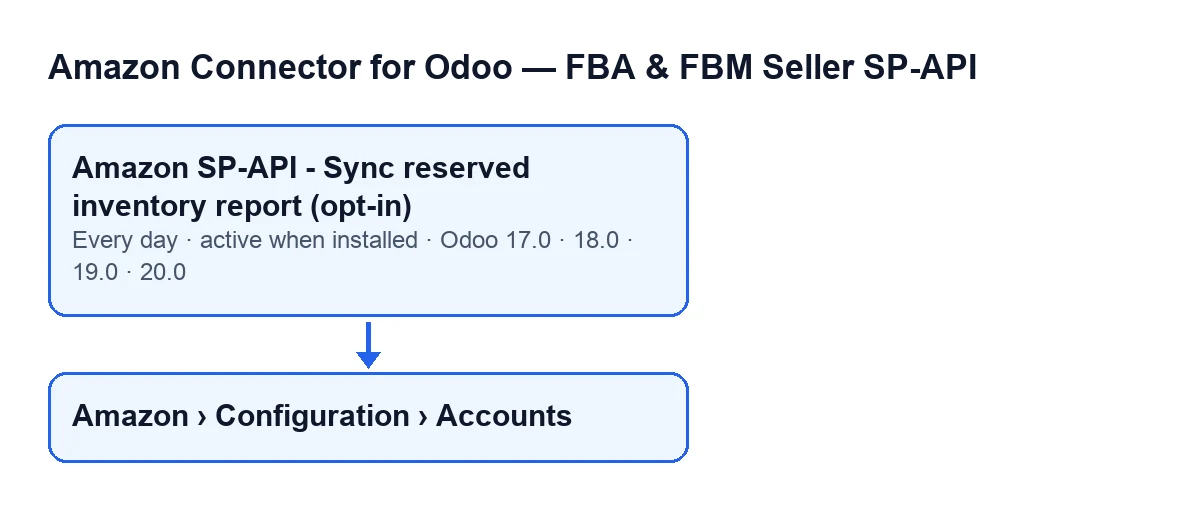
The action runs once a day and is active as soon as you install the module. It exists in the 17.0, 18.0, 19.0 and 20.0 branches. In Odoo 17 the action repeats without end.

What it does on each run
The action does not touch every Amazon account: it looks for the ones that are active and have the reserved inventory sync switched on. An account that is not active, or that does not have that sync switched on, is left out of the run (the name of the action carries opt-in). For the accounts that are included, it works through them one at a time:
- It starts the sync for that account, flagged as coming from the scheduled action; with that flag, the result text stored on the account is not also posted as a message on it.
- It creates a reserved inventory report in Amazon and takes its identifier.
- It checks the report status, waiting between checks, until Amazon reports
DONE,CANCELLEDorFATAL, or until the attempts run out. If the account does not set how many attempts or how long to wait, the code uses twelve attempts with ten seconds between them. - If the report is
DONEand has a document, it asks Amazon for the report document and passes its content to the reserved inventory lines import, whose counts are added to the result text. - When the report gets that far, or ends up in one of the cases described below, it writes the date of the run and the result text on the account.
If the sync for an account ends in an error and that error reaches the scheduled action, the action leaves a warning in the server log with the account name and the error, and carries on with the next account.
Where the accounts are
The account records open from the menu Amazon › Configuration › Accounts. Each level asks for a permission, and if you do not have it you do not see that level: Amazon asks for Viewer, while Configuration and Accounts ask for Manager. The Name field is on the Accounts record, in the Identity tab, Account group, and also in the accounts list. That name is the one that appears in the log warning.
Worked example: one account, several different days
Example Illustrative case: the company and its figures are made up to explain the flow.
Hogar Levante is an invented company that sells on Amazon and has an account connected to its Odoo. Its systems manager leaves the account active and with the reserved inventory sync switched on. From then on the account is part of the daily run. These are the days it can go through.
The day everything goes well
The action creates the report, checks it until Amazon reports DONE, requests the document and imports it. The result text stored on the account contains, in this order, Amazon FBA reserved inventory sync finished., Account: … with the account name, Source: … with the value CRON, Report ID: … and Report status: …. After those come the import counts: Report rows: …, Processed rows: …, Created: …, Updated: …, Skipped: … and With error: ….
The day Amazon does not finish the report
If, after the checks, the status is not DONE, nothing is imported that day. If Amazon marks it CANCELLED or FATAL, the text adds Amazon did not generate a usable reserved inventory report.. If the status is still not final when the attempts run out, it adds Report polling timed out. Try again in a few minutes.. With either text the account stores the date and the text, and the action carries on with the next account. It does not ask for that account's report again in the same run: the next one is the following day, because it runs once a day.
The day the report arrives without a document
If the report is DONE but Amazon gives no document for it, the text adds DONE report without reportDocumentId.. Nothing is imported either, and the account stores the date and the text.
The day something fails
If an error reaches the scheduled action, the warning stays in the log with the account name, the one Hogar Levante sees in the Name field. The action moves on to the other accounts and does not stop.
What to take from the example
The action is not a button or a screen: it is a daily run with one result per account. When it seems to do nothing, check in this order:
- The action. It is active on install and runs once a day. Check that it is still active.
- The account. It must be active and have the reserved inventory sync switched on; otherwise the action does not pick it up. Find it by its
NameinAmazon › Configuration › Accounts. - The report status. The line
Report status: …says what Amazon answered. If it is notDONE, nothing was imported that day. - The result text. In the cases described above, the account stores the date of the run and this text; because the action flags the sync as its own, the text is not also posted as a message on the account.
- The server log. If an error reached the action, the warning with the account name is there.
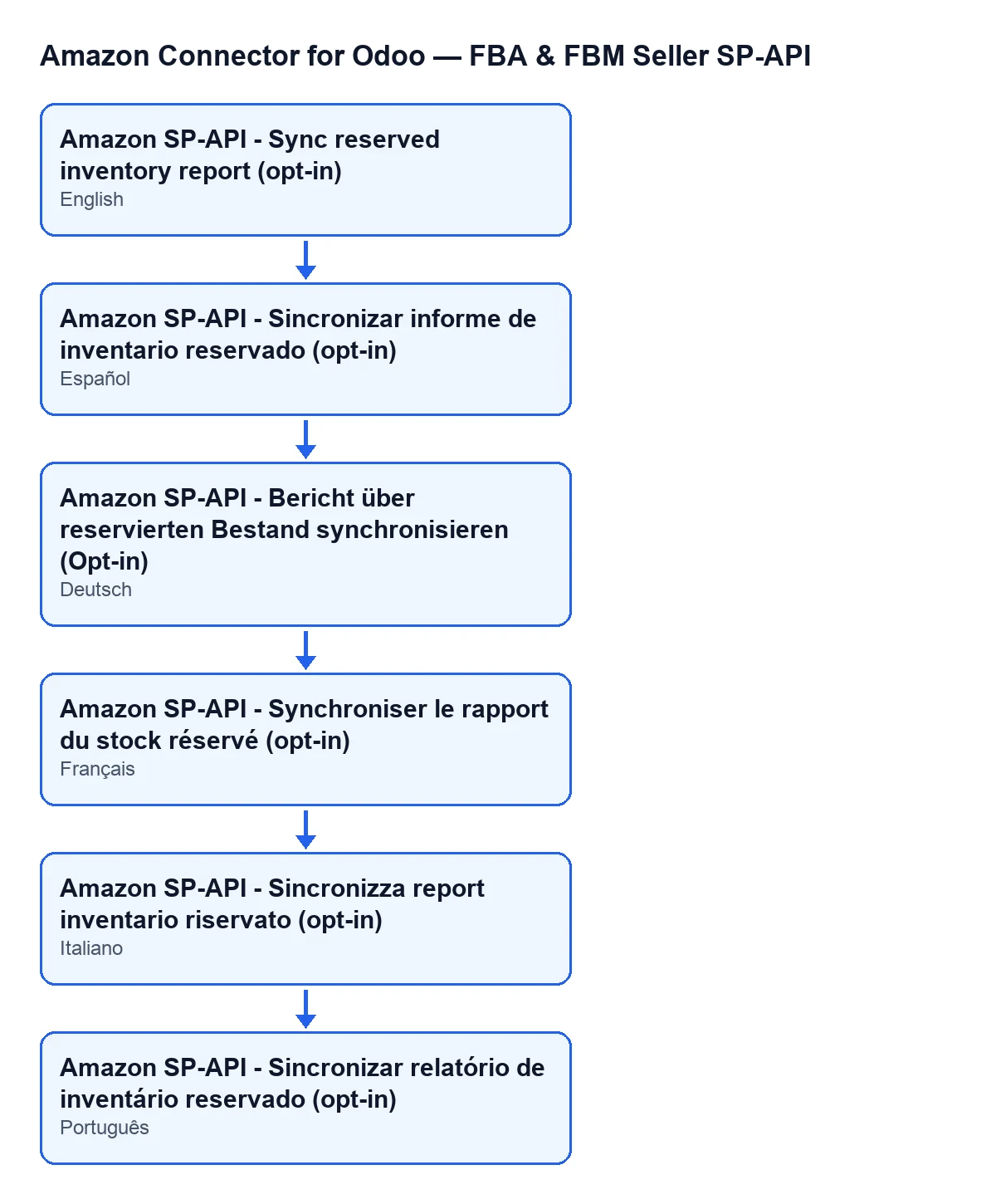
To recognise the action in your Odoo, this is its name in each language:
What the module needs and how FlexigoTech can help
The module is a one-off purchase per Odoo version and is published for 17.0, 18.0, 19.0 and 20.0; the price of each is on the Odoo Apps listing and on the module page. It also needs the FlexigoTech Cloud subscription, Connector plan: €49 a month or €490 a year, excluding VAT, with up to 3 accounts of the platform. The connection goes through FlexigoTech Cloud, which stores the credentials encrypted, monitors the sync and emails you if it fails. Without a subscription, or with the service suspended, what the subscription provides stops; your data stays in your Odoo.
If you are implementing Odoo and want to review how the Amazon connection is set up, FlexigoTech implements Odoo 17, 18, 19 and 20 and builds custom connectors and integrations.
Keep reading
Checked in the connector's source code (version 17.0 and 20.0) and the linked sources
Sources
- Module source code: flexigobe_amazon_seller_connector 20.0 (8576afa5): data/ir_cron_data.xml
- Module source code: flexigobe_amazon_seller_connector 17.0 (165f66af): data/ir_cron_data.xml
- Module source code: flexigobe_amazon_seller_connector 20.0 (8576afa5): models/amazon_spapi_account.py
- apps.odoo.com/apps/modules/20.0/flexigobe_amazon_seller_connector
- flexigotech.com/en/services.html
- flexigotech.com/precios.html