

 Español
 Català
 Deutsch
 Français
 Português
 Italiano
 Nederlands
 Polski
What this notice is, and what it is not
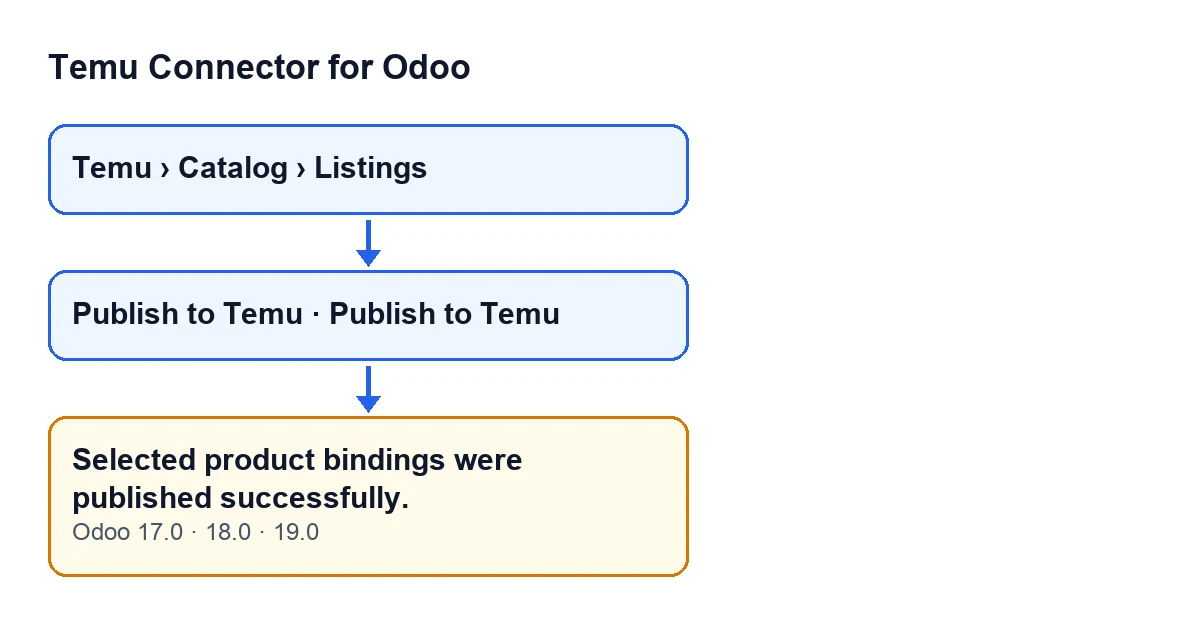
It is an Odoo success notification, not an error. The exact text is Selected product bindings were published successfully. and it appears when the Publish to Temu button has finished working on the listings you selected. The message is in the published code for Odoo 17, 18 and 19. In Odoo 19, the module does the following when you press the button, and that is what is detailed below.

Where the button is
Listings open from the menu Temu › Catalog › Listings. The Publish to Temu button on the listing form is always visible, in Odoo 17, 18 and 19. Another button with the same label sits in a different view of the module, which is also always visible and whose method ends up at the same action. The notice is therefore the same from either button.
What the module does before showing it
The notice is the very last thing that happens. This is the real order, listing by listing:
- You press
Publish to Temu. The action goes through the selected listings one at a time. - For each listing it picks a route. If the listing has no Temu product ID yet and the instance is set to use the V3 goods-add API, it uses the simplified V3 publish: it builds the data, stores it on the listing as the last payload and makes a single call to Temu.
- In every other case it validates the product data first: if the compliance validation or the validation of the name and description content returns errors, the action stops at that listing. Then, if the listing already has a Temu ID, it updates the product that is already published. If not, it publishes it by trying several API methods in order. If a method fails with an error that mentions a schema or an invalid parameter, or with certain API errors, it tries the next one; any other error ends the attempts.
- It looks for the product ID in the response. If the response does not carry one, it keeps the ID the listing already had. If there is neither, the action stops with an error.
- It saves the outcome on the listing: the Temu ID, the published state, an empty last error, the response received, the method used and the publish and sync dates.
- It syncs the SKU links from the response. If the response has no SKU list, it uses the one from the data it sent.
- If there are fewer SKU links than active variants of the product, or any link has no Temu SKU ID, it tries to refresh the catalogue data. If that attempt fails, it is noted in Odoo's log and the action carries on.
- It asks Temu for the publish status and applies it to the listing. It stores the remote status code and label and the modify ID. If the code has a matching state in the module, the listing takes that state. If Temu returns a status message, it is stored as the last error. If this query fails, it is also noted in Odoo's log and the action carries on.
- When every selected listing has gone through this without raising an error, Odoo shows the notice. It is a success-type notification and it does not stay pinned on screen.
How to read it
- What it confirms. The send to Temu (publish or update) did not error, and the listing was saved with a Temu product ID, either the one returned or the one it already had.
- What it does not guarantee. The catalogue refresh and the status query cannot stop the notice: if they fail, it still appears.
- The state can move afterwards. The remote status is applied after the listing is saved as published, so the listing's final state may be a different one depending on Temu's answer.
- Several listings. The notice appears once, at the end, and only if all of them went through.
If the notice does not appear
If any listing raises an error, there is no success notice. Before re-raising the error, the code marks that listing as failed and stores the error text on it. The action stops at that listing, so the remaining ones in the selection are not processed.
What to do:
- Read the error message Odoo shows you, which is the one the module tries to keep stored on the listing.
- If the error comes from the compliance validation or the name and description validation, fix the product and press
Publish to Temuagain. - If you selected several listings, run the action again for the ones left unprocessed.
Cost and help from FlexigoTech
Temu Connector for Odoo is a one-off purchase per version and needs the FlexigoTech Cloud subscription, Connector plan (€49 a month or €490 a year, excluding VAT). It is published for Odoo 17, 18, 19 and 20. Purchase details are on the module page and on the Odoo Apps listing.
FlexigoTech implements Odoo 17, 18, 19 and 20 and builds custom connectors and integrations. If you need help getting product publishing to Temu working from Odoo, get in touch.
Keep reading
Checked in the connector's source code (version 19.0) and the linked sources
Sources
- Module source code: flexigobe_temu_connector 19.0 (455b3f0f): models/temu_product_binding.py
- Module source code: flexigobe_temu_connector 19.0 (455b3f0f): views/temu_product_binding_views.xml
- Module source code: flexigobe_temu_connector 19.0 (455b3f0f): wizard/temu_product_publish_wizard_views.xml
- apps.odoo.com/apps/modules/19.0/flexigobe_temu_connector
- flexigotech.com/precios.html
- flexigotech.com/en/services.html