

 Español
 Català
 Deutsch
 Français
 Português
 Italiano
 Nederlands
 Polski
A case to follow the button from start to finish
Example Illustrative case: the company and its figures are made up to explain the flow.
Picture an invented shop, Hogar Levante, that has just installed Temu Connector for Odoo and wants Odoo to read Temu's reference categories again from scratch. The Odoo administrator opens the Temu menu, goes into the record of their instance (recognisable by the Name field) and presses Queue Reference Cache Sync. What follows is what happens behind the scenes, according to the module code in Odoo 19.
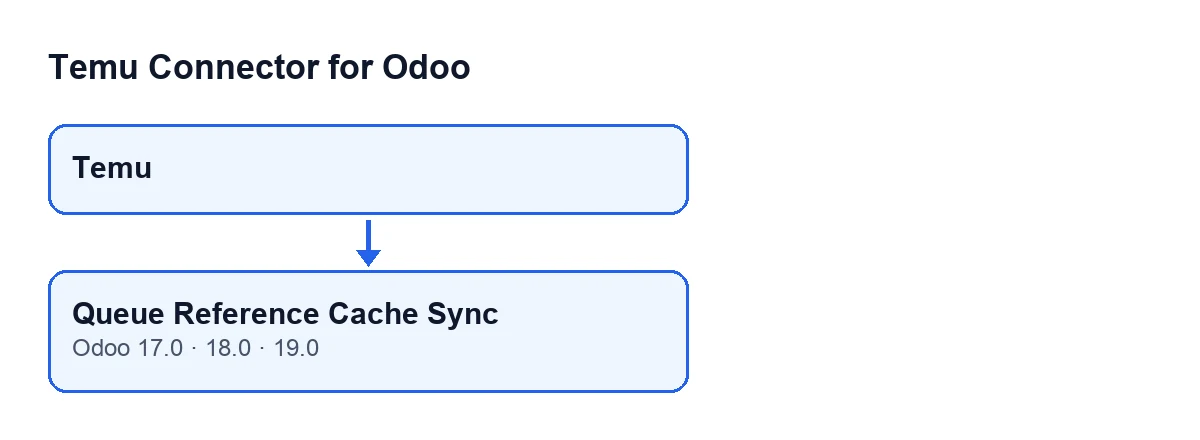
Temu menu and the reference cache sync button (Odoo 17, 18 and 19). It is a diagram built with code, not an Odoo screenshot.The button is on the Temu Dashboard screen in the 17, 18 and 19 branches of the module. The view sets no condition on it: it is always visible.

What Odoo does by itself, without pressing anything
Pressing the button is not the normal route. The scheduled action Temu Sync Reference Cache runs every five minutes and is active from the moment the module is installed. That action reaches the routine that works through the category queue: if a queue is stored, it carries on from it, and if the queue is empty, it starts from the starting point (Temu's initial level).
The button is the exception: it asks for a start from scratch by hand, so the action does not have to wait for its next turn.
Step by step: what happens when you press the button
- The button works on the record you have open. It notes the time of the request and leaves the sync as pending.
- It wipes whatever an earlier run left behind: the start time, the end time, the error, the summary and the sync mark for the data that is not categories.
- It resets the category queue to a single starting point, empties the list of categories already visited and sets the processed counter back to zero.
- It looks for the scheduled action
Temu Sync Reference Cache. If it exists and is switched off, the button switches it on, except in a neutralised database, where it leaves it off. If the action had no next run or had one in the future, the button sets it to now. - It posts the text of the notice as a message in the record's chatter and shows a notification on screen.
None of this reads Temu's categories yet: the button only prepares the ground and wakes the scheduled action.
When the notification is a warning
If all goes well, the notification is a success. In the cases below it appears as a warning, and that warning stays on screen until you close it:
- Neutralised database with the action switched off. The button never switches a scheduled action back on in a neutralised copy. The request is noted, but the action stays off and will not start by itself: you will have to run the scheduled action
Temu Sync Reference Cacheby hand, as the notice itself says. - The scheduled action does not exist. The button notes the request and has nothing to wake. The notice says the module has to be updated to create it.
In both cases the same notice text is also left in the record's chatter, so you can check it afterwards.
What the scheduled action does when it picks up the queue
Each pass of the action works like this, according to the code:
- It takes nodes from the queue until it reaches a limit on nodes per pass or a time budget, whichever comes first.
- It skips nodes already recorded as visited.
- It asks Temu for the child categories of each node.
- If the node already had a record, it marks it as a leaf depending on whether the response had rows.
- It creates or updates one record for each category received, identified by the instance and the Temu identifier. It stores name, level, availability status, type, parent and the original response.
- It adds the child categories to the queue, unless they are the parent itself, already visited or already queued. They are processed in this same pass or in a later one, depending on whether the node limit or the time limit is reached first.
- At the end it saves the queue and the visited list, and adds the processed nodes to the counter.
The pass also reports whether the queue has been emptied.
A detail worth knowing
If the query to Temu returns no rows, the node is treated as having no children. That holds both when there really are no child categories and when the call failed: in the second case, the code may leave a warning in the server log. If the node had a record, it ends up marked as a leaf. It is worth checking that log if a node shows up as a leaf and you did not expect it.
What to check afterwards in the Hogar Levante case
- That the record's chatter has the message about the request.
- That the
Temu Sync Reference Cacheaction is active. If the database is a neutralised copy, it will stay off and you will have to run it by hand, as the notice says. - That, after a few minutes and with the action active, it has started working through the queue.
What the case teaches
- The button resets and queues; reading from Temu is done by the scheduled action.
- It resets the state and the queue, so use it when you want to start over, not for a simple refresh.
- The warnings concern the scheduled action, not Temu.
Cost and help
Temu Connector for Odoo is a one-off payment per version and needs the FlexigoTech Cloud subscription (Connector plan: €49/month or €490/year excl. VAT). The connection goes through FlexigoTech Cloud, which stores the credentials encrypted, monitors the sync and emails you if it fails. The module is published on Odoo Apps for 17, 18, 19 and 20; you will find more on the Odoo Apps listing and on the module page.
If you need to implement Odoo with Temu or a custom integration, FlexigoTech implements Odoo 17, 18, 19 and 20 and builds connectors and integrations.
Keep reading
Checked in the connector's source code (version 19.0) and the linked sources
Sources
- Module source code: flexigobe_temu_connector 19.0 (455b3f0f): views/temu_instance_views.xml
- Module source code: flexigobe_temu_connector 19.0 (455b3f0f): models/temu_instance.py
- Module source code: flexigobe_temu_connector 19.0 (455b3f0f): models/fgt_cloud.py
- apps.odoo.com/apps/modules/19.0/flexigobe_temu_connector
- flexigotech.com/precios.html
- flexigotech.com/en/services.html