

 Español
 Català
 Deutsch
 Français
 Português
 Italiano
 Nederlands
 Polski
When the message appears
It is an error that stops the action. You see this text: Set the LWA Client ID and Client Secret, or switch Connection Mode to "FlexigoTech Hub" to connect without your own Amazon app. The text is in the published code of every branch of the module: 17.0, 18.0, 19.0 and 20.0.
The check belongs to the Amazon account form and runs when you save. According to the Odoo 20.0 code, two conditions must be true at the same time:
Connection Modeis set toYour own Amazon app (advanced).- The
LWA Client IDis empty, or the LWA Client Secret is empty: it is enough for one of the two to be missing. A value made only of spaces counts as empty.
The check runs again when you save a change to the connection mode, the client ID or the client secret. If the condition is met, the form is not saved. With the FlexigoTech Hub (one click, recommended) mode, this check does not fail.
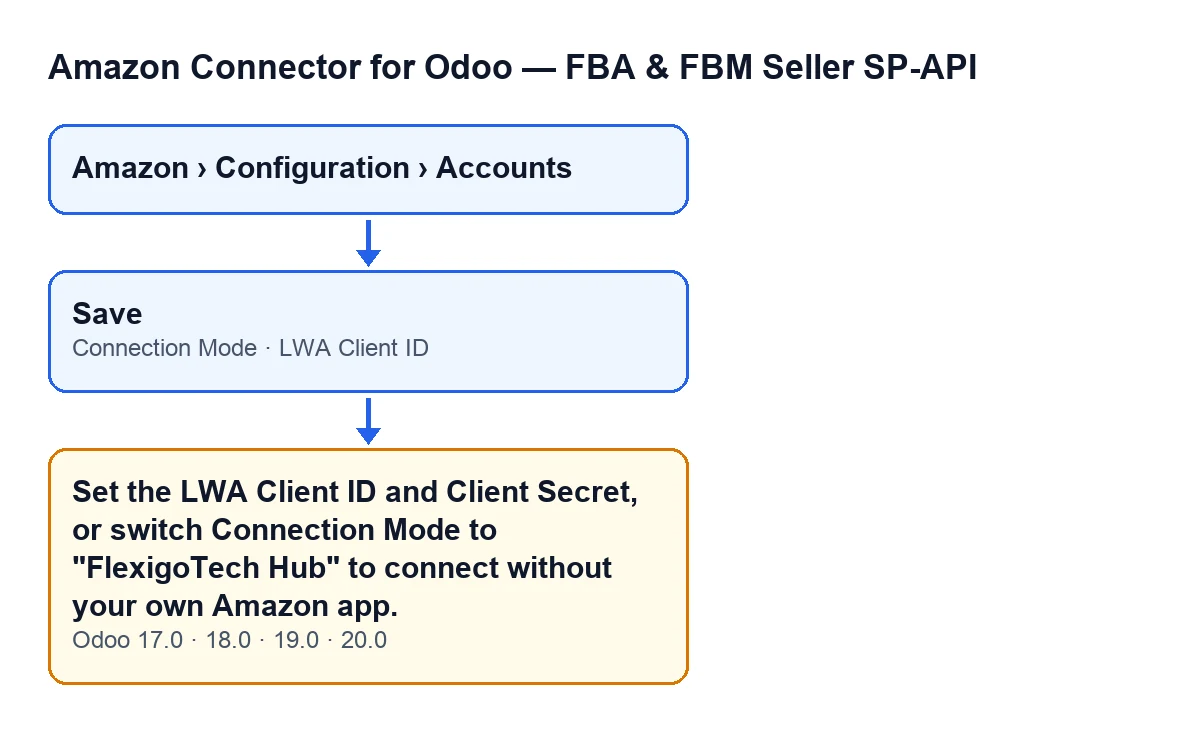

What the code does when you save, in order
For each account being saved, the module looks at the connection mode first. If the mode is FlexigoTech Hub, this check ends there and asks for no LWA details.
If the mode is your own Amazon app, the module looks at the LWA Client ID and the LWA Client Secret, trimming spaces at the ends. If either of them ends up empty, it raises the error and the action stops: nothing you were about to change on the form is saved.
That is why the message can appear even if you only touched one field. If you switch the mode to your own app and leave the ID or the secret empty, the form will not save until both have a value.
What it means
The module distinguishes between connecting through the Hub and connecting with your own app. According to the help text of the connection mode field, with the Hub you connect in one click through FlexigoTech's already-published Amazon app, with no developer account and no LWA credentials to create. With your own app, you bring your own Login-with-Amazon client id and secret.
The message tells you that the account is set to your own app and does not have those credentials complete. It gives you two ways out: fill in the LWA Client ID and Client Secret, or switch the connection mode to FlexigoTech Hub.
How to fix it, step by step
- Open the menu
Amazon › Configuration › Accounts. Each part asks for a permission:AccountsandConfigurationask forManager, andAmazonasks forViewer. If you cannot see one of them, you are missing that permission. - Open the account form that will not save and go to the
Credentialstab. - See whether the tab shows the
Connection Modegroup: that is where the account's mode is set. On screen the field has no label, you only see its content, with the mode options. With the default values this field is not shown. - If the connection mode field is visible, choose
FlexigoTech Hub (one click, recommended)to connect without your own Amazon app, or leaveYour own Amazon app (advanced)to keep using your own app. - If you keep your own app, the tab shows the
LWA Credentialsgroup with theLWA Client IDfield. Fill it in. The message also names the LWA Client Secret and the check requires it to have a value, so the ID alone is not enough: both must be complete. - Save the form. If the message comes back, check that neither the ID nor the secret is blank or made only of spaces.
What to check afterwards
The form saves without the message. If you switched to the Hub, the LWA Client ID field is no longer shown, because it is hidden when the mode is not your own app. If you kept your own app, reopen the form and confirm that the mode and the ID are as you left them.
Questions about this message
Why can I not see the connection mode field?
With the default values this field is not shown. When it is shown, you find it on the Credentials tab, in the Connection Mode group, with no label: you only see its content.
Why can I not see the LWA Client ID?
The LWA Client ID field is hidden when the mode is not Your own Amazon app (advanced). The code's default value is the Hub, so with the default values it is not shown. It appears, in the LWA Credentials group of the Credentials tab, when the mode is your own app.
Is anything saved when the message appears?
No. It is an error that stops the action: the form is not saved with what you were about to change. Correct the details or the mode and save again.
Can it appear in other Odoo versions?
The message is in the published code of 17.0, 18.0, 19.0 and 20.0. The specific conditions (own-app mode and an empty ID or secret) are those in the Odoo 20.0 code.
Where is each account field explained?
How FlexigoTech can help
FlexigoTech implements Odoo 17, 18, 19 and 20 and develops connectors and custom integrations. The module is published on Odoo Apps for 17.0, 18.0, 19.0 and 20.0: see the Odoo Apps listing or the module page for what it includes.
Keep reading
Checked in the connector's source code (version 20.0) and the linked sources
Sources
- Module source code: flexigobe_amazon_seller_connector 20.0 (8576afa5): models/amazon_spapi_account.py
- apps.odoo.com/apps/modules/20.0/flexigobe_amazon_seller_connector
- flexigotech.com/en/services.html