

 Español
 Català
 Deutsch
 Français
 Português
 Italiano
 Nederlands
 Polski
Which settings and fields to fill in first
Which general fields should I check before anything else?
The module defines a company_id field pointing to res.company (the company), a settlement_currency_id pointing to res.currency (the currency) and a default_warehouse_id pointing to stock.warehouse (the warehouse). There is also a text field, Webhook URL (webhook_url). Before going further, make sure the company, currency and warehouse you pick are the ones you want to use with the connector.
What does the module need for selling on Cdiscount through Octopia?
There is a group of fields with the octopia_ prefix. This is what the help text of each one says:
Octopia Seller ID(octopia_seller_id): sent as theSellerIdheader on every Octopia call, and the help refers you to the Cdiscount seller back office.Octopia Sales Channel(octopia_sales_channel): the help states thatCDISFRis Cdiscount France.Octopia Delivery Modes(octopia_delivery_modes): the delivery modes offered on every offer, comma separated; one of the formats the help gives isCODE:cost.Octopia Preparation Time (days)(octopia_preparation_time): a whole number, in days.Octopia VAT Rate (%)(octopia_vat_rate): the VAT rate declared on offers, as a percentage. The help gives 20 = 20 % as an example and describes it as the French standard rate.
The VAT rate you enter is the one the module declares on your offers, so confirm it with whoever handles your tax before you publish.
Where are the category, attribute and carrier mappings?
The module has several related lists: category_mapping_ids (model mkt.category.mapping), attribute_mapping_ids (mkt.attribute.mapping) and carrier_mapping_ids (mkt.carrier.mapping). Alongside them sit listing_ids (mkt.listing) and kpi_threshold_ids (mkt.kpi.threshold). To see which columns each list asks for, open it in a test database before loading real data.
What should I do about logs and Sentry?
In Log Retention (days) (mkt_log_retention_days) you enter a number of days: API call logs and sync job logs older than that are purged automatically. Decide how much history you want to keep so you can review what happens in the first week. In Sentry DSN (mkt_sentry_dsn), if you fill it in, unhandled sync exceptions are forwarded to Sentry; leave it blank and it stays disabled.
Which states each record goes through
Which state should a connection and a listing show?
Among the module's state fields there is one with the values Draft, Connected, Error and Restricted: it is the set that contains Connected, the state the connections list shows when you filter by it. Another state has Draft, Active, Paused, Ended and Error. Active is the state of the listings you see under All Listings with the Active filter, next to the Unpublish button.
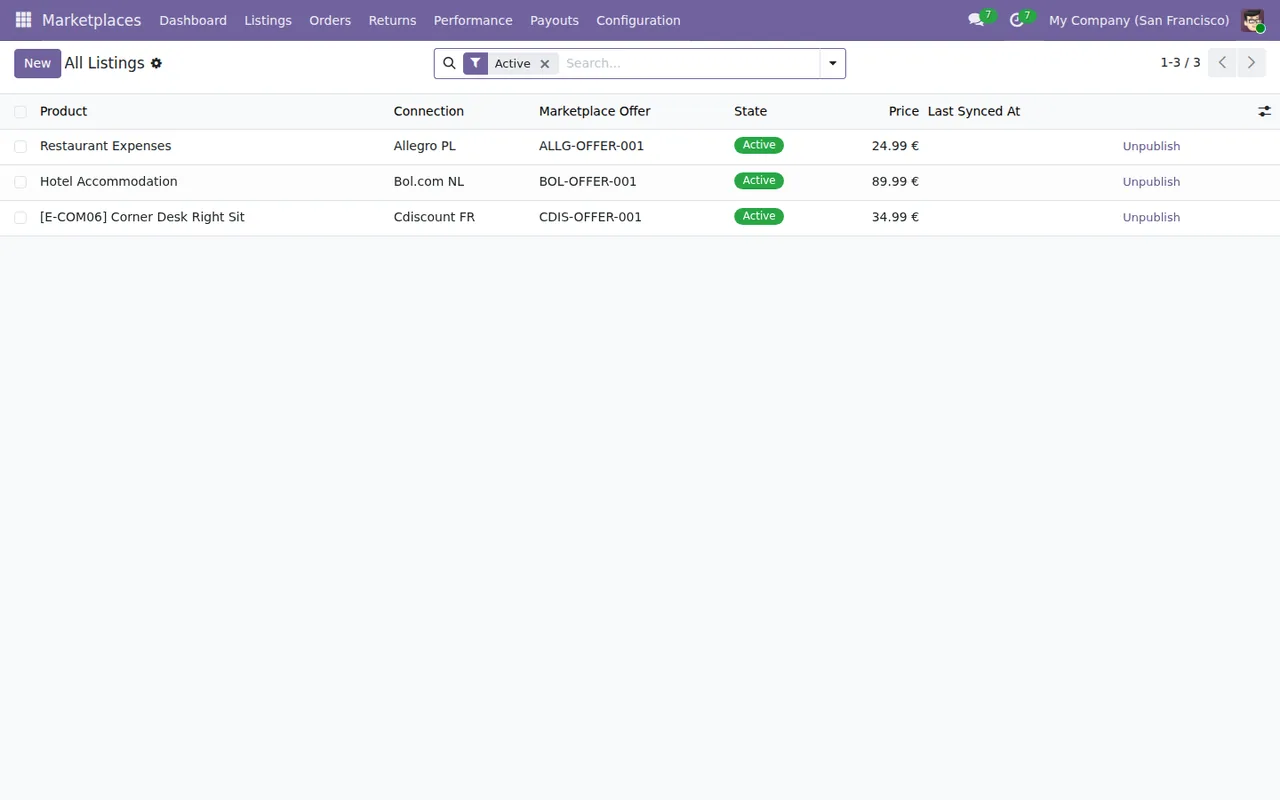
Marketplaces › All Listings with the Active filter: product, connection, offer, state, price and the Unpublish button.Which other states does the module define?
Besides the two above, the module has these state fields:
status_flag:Normal,Address IncompleteandCancelled (post-fulfilment).- A
statewithRequested,In Transit,Received,Approved,RejectedandRefunded. - A
statewithDraft,MatchedandPosted. - A
match_statuswithMatched,UnmatchedandPartial. - A
statewithRunning,DoneandFailed.
To see which view each one appears in and what a record goes through from start to finish, read how EU Marketplace Connector works under the bonnet.
What do the Green, Amber and Red colours mean?
The module has four fields that take the values Green, Amber and Red: cancellation_status, late_shipment_status, return_rate_status and feedback_status. There is also the kpi_threshold_ids list, which points to mkt.kpi.threshold. During the first week, note down the colour of each of the four so you have a reference to compare against later.
What to check in the first week
What should I check on the connections every day?
Open the connections list with the Connected filter. In the sequence below there are four: Allegro PL, Bol.com NL, Cdiscount FR and Kaufland DE, with their company, seller account, Connected state and API errors at zero. If a connection drops out of that filter and you find it in Error or Restricted, or if the API error counter is no longer at zero, look up the message in the module's error messages and warnings before publishing more listings on it.
Active filter, Settlements and connections with the Connected filter.What should I look at in orders, listings and settlements?
In Marketplaces › Marketplace Orders, check that each order comes with a customer, marketplace and order ID, and look at its invoicing status. In All Listings, check that the listings you expect are in Active and that the price is the one you set.
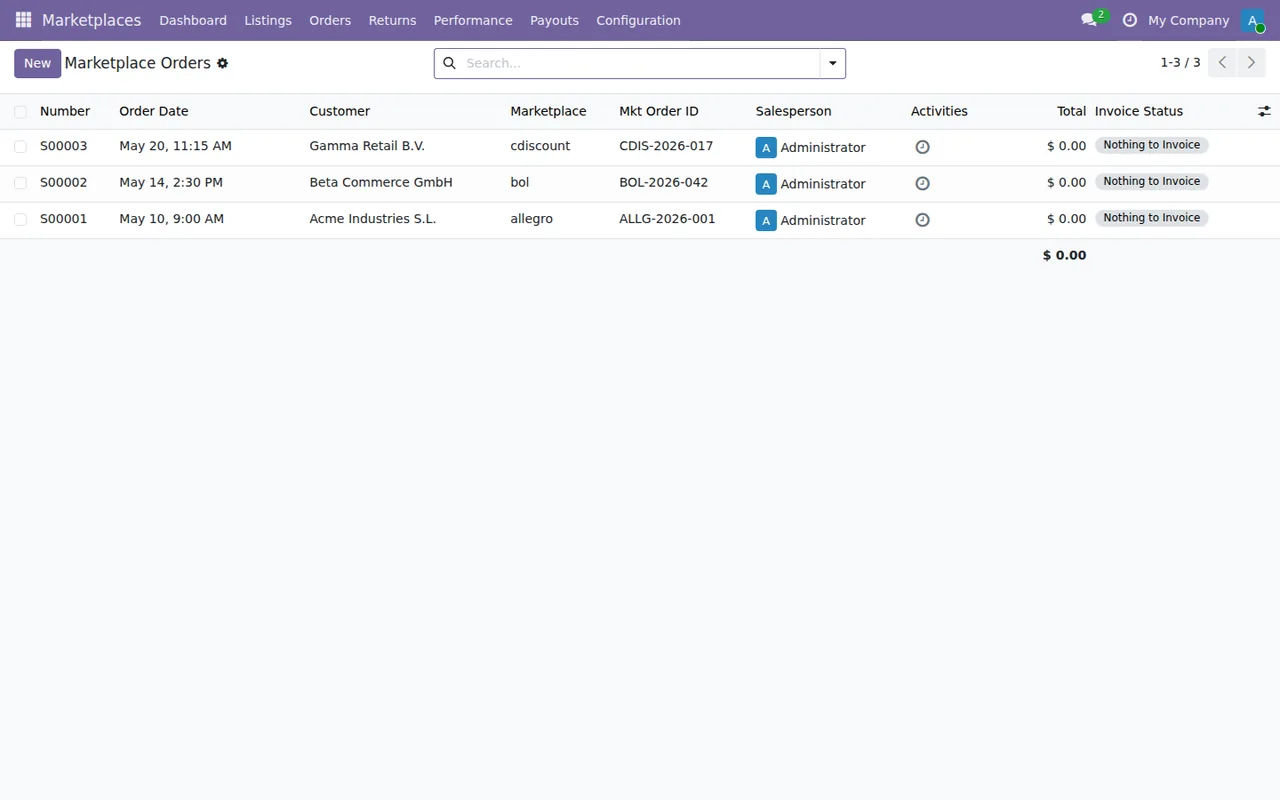
Marketplaces › Marketplace Orders: customer, marketplace, order ID, salesperson, total at zero and the Nothing to Invoice status.In Marketplaces › Settlements each row shows the period, the total payout, the matched and unmatched lines, and the import method. Go through the unmatched lines of each settlement. And before the days you set in Log Retention (days) run out, review the sync job logs you care about, because the older ones are purged.
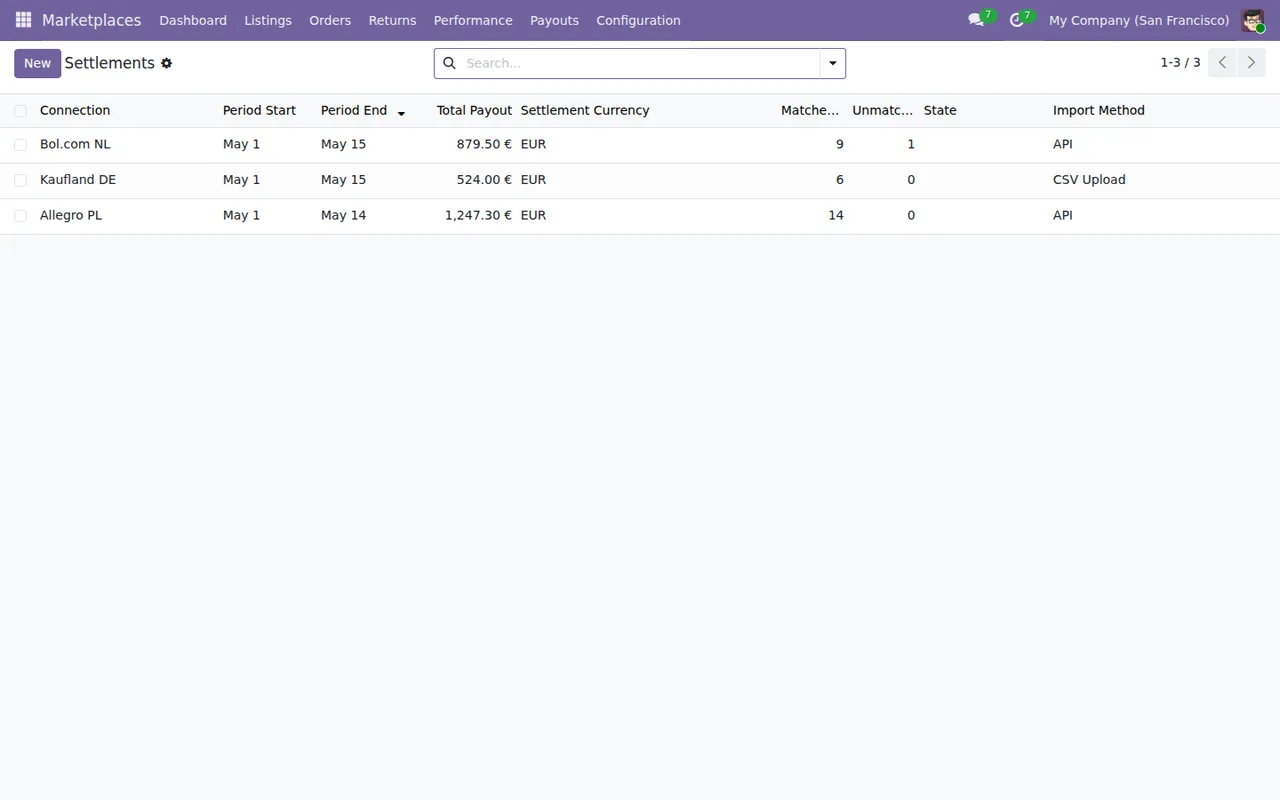
Marketplaces › Settlements: period, total payout in EUR, matched and unmatched lines and import method.What it costs and how FlexigoTech can help
EU Marketplace Connector is published on Odoo Apps for Odoo 17, 18, 19 and 20, at €9 excluding VAT per Odoo version, one-off payment, according to the Odoo Apps listing. That payment is not the whole cost: in all four versions the module needs a FlexigoTech Cloud subscription, Connector plan, at €49/month or €490/year excluding VAT, with up to 3 platform accounts (the Pro plan, at €98/month or €980/year excluding VAT, allows up to 10). The connection runs through FlexigoTech Cloud, which stores the credentials encrypted, monitors the sync and emails you if it fails.
If you would rather not handle the setup on your own, at FlexigoTech we implement Odoo 17, 18, 19 and 20 and build bespoke connectors and integrations, for instance for a particular marketplace or a specific flow in your business.
Keep reading
Checked in the connector's source code (version 20.0) and the linked sources
Sources
- Module source code: flexigo_multimarketplace 20.0 (2270b5c0): models/mkt_connection.py
- Module source code: flexigo_multimarketplace 20.0 (2270b5c0): models/res_config_settings.py
- Module source code: flexigo_multimarketplace 20.0 (2270b5c0): models/mkt_kpi_snapshot.py
- Module source code: flexigo_multimarketplace 20.0 (2270b5c0): models/mkt_listing.py
- Module source code: flexigo_multimarketplace 20.0 (2270b5c0): models/mkt_order.py
- Module source code: flexigo_multimarketplace 20.0 (2270b5c0): models/mkt_return.py
- Module source code: flexigo_multimarketplace 20.0 (2270b5c0): models/mkt_settlement.py
- Module source code: flexigo_multimarketplace 20.0 (2270b5c0): models/mkt_settlement_line.py
- Module source code: flexigo_multimarketplace 20.0 (2270b5c0): models/mkt_sync_job.py
- apps.odoo.com/apps/modules/20.0/flexigo_multimarketplace
- apps.odoo.com/apps/modules/17.0/flexigo_multimarketplace
- apps.odoo.com/apps/modules/18.0/flexigo_multimarketplace
- apps.odoo.com/apps/modules/19.0/flexigo_multimarketplace
- flexigotech.com/precios.html
- flexigotech.com/en/services.html