

 Español
 Català
 Deutsch
 Français
 Português
 Italiano
 Nederlands
 Polski
The case: Ribera Metalworks installs the toolkit
Example Illustrative case: the company and its figures are made up to explain the flow.
Ribera Metalworks is a fictional company that makes parts for other manufacturers and already runs Odoo. Its IT lead, Laura, installs NIS2 Cybersecurity Compliance Toolkit to keep the company profile, controls, risks, training and incidents in one place. What follows is her setup: the names of screens, columns, fields and states come from the module; Laura's decisions are illustrative.
Before installing, Laura checks her version. The module is published on Odoo Apps for Odoo 17, 18 and 19, at €49 excluding VAT for each of those versions, a one-off payment per version. If you are still unsure whether it suits you, that is covered in whether the toolkit fits your company.
First record: the company profile
Laura starts with the list of company profiles. The columns are legal entity, company, member state, sector, size, applicability status, profile status and owner, with a search bar and a New button. Those columns tell her what to have ready: which legal entity it is, which member state it operates in, its sector, its size and who looks after the profile.
The field she spends most time on is applicability_status. The values the module defines are Potentially In Scope, Likely Out of Scope, Needs Legal Review, Essential Entity Candidate (Annex I), Important Entity Candidate (Annex II) and Confirmed by Legal Counsel. Look at the labels: they talk about a «candidate» and about legal review. The app stores the assessment you enter. Laura leaves the profile at Needs Legal Review and notes that she will change it to Confirmed by Legal Counsel once her legal adviser confirms it.
You enter the applicability status yourself. Decide with your adviser and record what they told you in the profile.
Second step: controls and their maturity status
The controls list has columns for category, control name, maturity status, owner and review. The maturity status (maturity_status) can be Not Implemented, Planned, Partially Implemented, Implemented or Not Applicable.
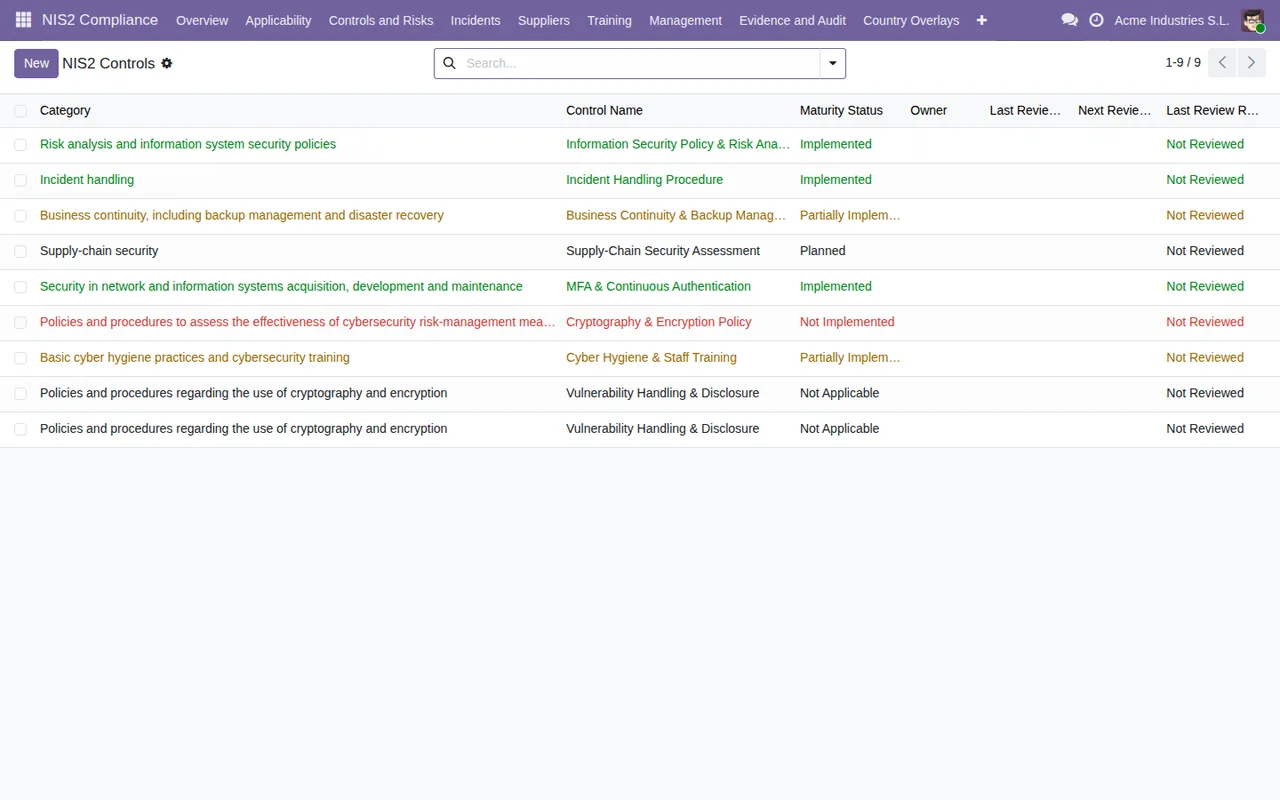
Laura goes through the controls with her team, one by one, and sets her own rule so she does not hesitate on each row:
Implementedonly if she can show how it is done today.Partially Implementedif it exists but does not cover everything the control describes.Plannedif a person and a date are committed.Not Applicableif it does not apply to the business and she can explain why.Not Implementedfor everything else.
On each row she also fills in the owner, because the column is in the list and she wants to see at a glance who is responsible for each control.
Third step: the risk register
The Risk Register list shows impact, likelihood, residual risk, treatment decision and state, with a New button and search. The states the module defines for this set are Draft, Under Review, Accepted and Closed.
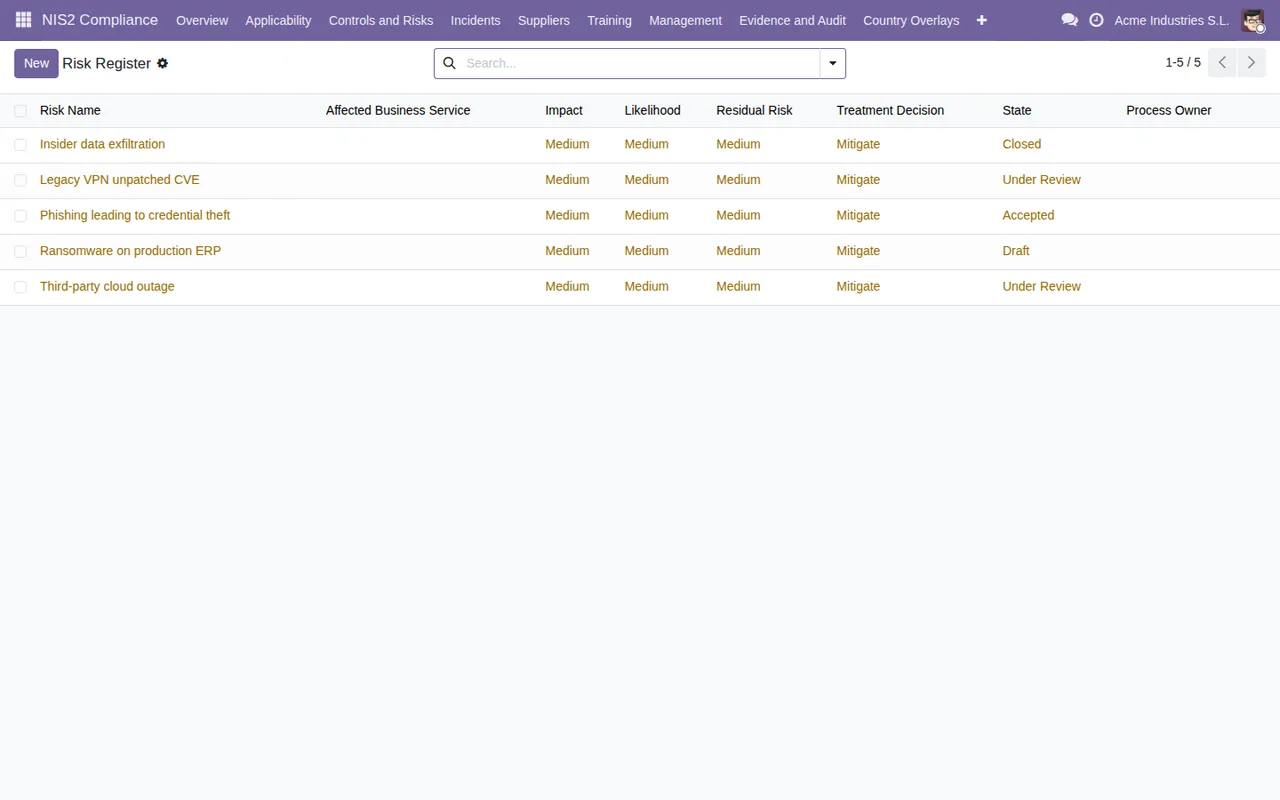
Laura records each risk in Draft with its impact and likelihood. She moves it to Under Review when she puts it in front of management and to Accepted once a treatment decision is agreed. Risks that no longer apply she sets to Closed rather than deleting them, to keep the trail.
Training: the Training Records
The Training Records list has columns for name, type, article and state, with a New button and search. The states are Assigned, In Progress, Completed, Overdue and Exempt.
Laura creates a record for each training the staff need to complete and marks anyone it does not apply to as Exempt, rather than leaving them without a record. That way, when she filters the list, anything not in Completed or Exempt is outstanding work.
Incidents: the list and the states the module defines
The incidents list has columns for reference, detection time, severity, state and significance assessment, plus a New button and search.
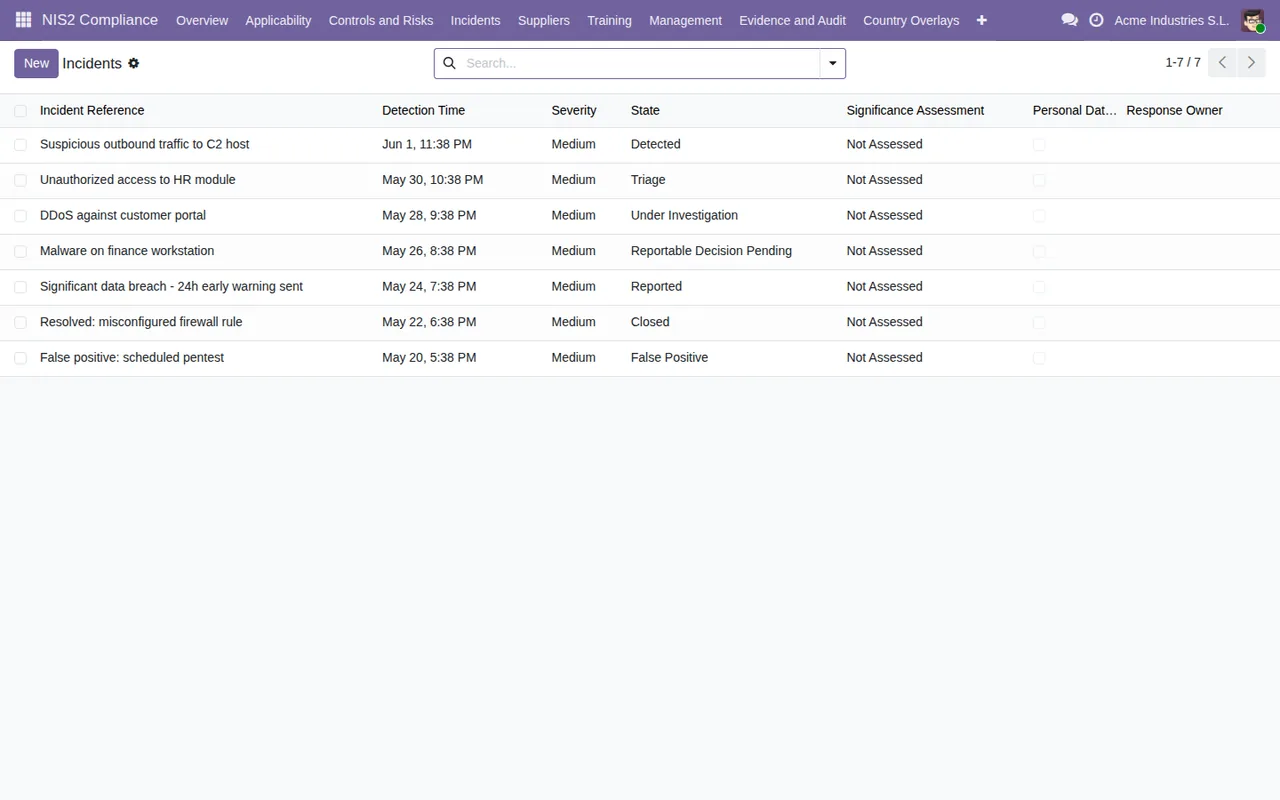
Among the state sets defined in the module's code there is one with Detected, Triage, Under Investigation, Reportable Decision Pending, Reported, Closed and False Positive, and a root_cause_status field with Unknown, Under Investigation, Identified and Not Applicable. Laura opens a test incident in her test database to see which values the state column offers before explaining it to the team. If you want the full structure of the module, it is in how the toolkit works under the bonnet.
The first week: what Laura reviewed
With everything entered, Laura sets aside some time each day of the first week to check:
- That the company profile has legal entity, member state, sector, size and owner filled in.
- That
applicability_statusreflects what the adviser said, not an assumption. - That no control is left without an owner in the controls list.
- That controls in
Plannedhave a person behind them. - That risks in
Drafthave moved toUnder Reviewor have a date to do so. - Which training records show
Overdueand who needs a call. - That the test incident stayed in the test database and not in the live one.
What to take from the case
The order Laura follows (profile, controls, risks, training, incidents) is her own choice, going from the general to the day to day. What does come from the module is what you need to fill in and understand: the columns of each list and the values of each state. Three ideas to keep:
- States are decisions made by people. Write down a rule before you start, especially for
maturity_status. - Applicability needs your adviser. The module's own labels make that clear with
Needs Legal ReviewandConfirmed by Legal Counsel. - One owner per row. The profile and controls lists have that column; use it.
How FlexigoTech can help
FlexigoTech implements Odoo and builds bespoke connectors and integrations. If you would like help loading your controls and risks, or connecting the toolkit with other parts of your Odoo, you will find the module on our page and on its Odoo Apps listing.
Keep reading
Checked in the module's source code (version 19.0) and the linked sources
Sources
- Module source code: flexigo_nis2_cybersecurity_compliance_toolkit 19.0 (af4f82c6): models/nis2_company_profile.py
- Module source code: flexigo_nis2_cybersecurity_compliance_toolkit 19.0 (af4f82c6): models/nis2_control.py
- Module source code: flexigo_nis2_cybersecurity_compliance_toolkit 19.0 (af4f82c6): models/nis2_risk.py
- Module source code: flexigo_nis2_cybersecurity_compliance_toolkit 19.0 (af4f82c6): models/nis2_training.py
- Module source code: flexigo_nis2_cybersecurity_compliance_toolkit 19.0 (af4f82c6): models/nis2_incident.py
- apps.odoo.com/apps/modules/19.0/flexigo_nis2_cybersecurity_compliance_toolkit
- apps.odoo.com/apps/modules/17.0/flexigo_nis2_cybersecurity_compliance_toolkit
- apps.odoo.com/apps/modules/18.0/flexigo_nis2_cybersecurity_compliance_toolkit
- flexigotech.com/en/services.html
- Module source code: flexigo_nis2_cybersecurity_compliance_toolkit 19.0 (af4f82c6): __manifest__.py