

 Español
 Català
 Deutsch
 Français
 Português
 Italiano
 Nederlands
 Polski
When it appears and what triggers it
The message reads Amazon did not return operationId when confirming the packing option. It appears when you press the Confirm Packing Option button on the inbound plan form, which you open from the menu Amazon › FBA › Inbound / Send to Amazon. It is an error that stops the action: the module halts there and saves nothing that the action was going to change.
The condition in the code is simple. The module asks Amazon to confirm the packing option chosen for the plan, takes the operation identifier (operationId) from the reply, strips any spaces from its ends and, if nothing is left, raises the message. In plain words: it appears when Amazon's reply has no operationId, has an empty one or one made only of spaces, or there is no reply to read. The module treats all of those cases the same way.
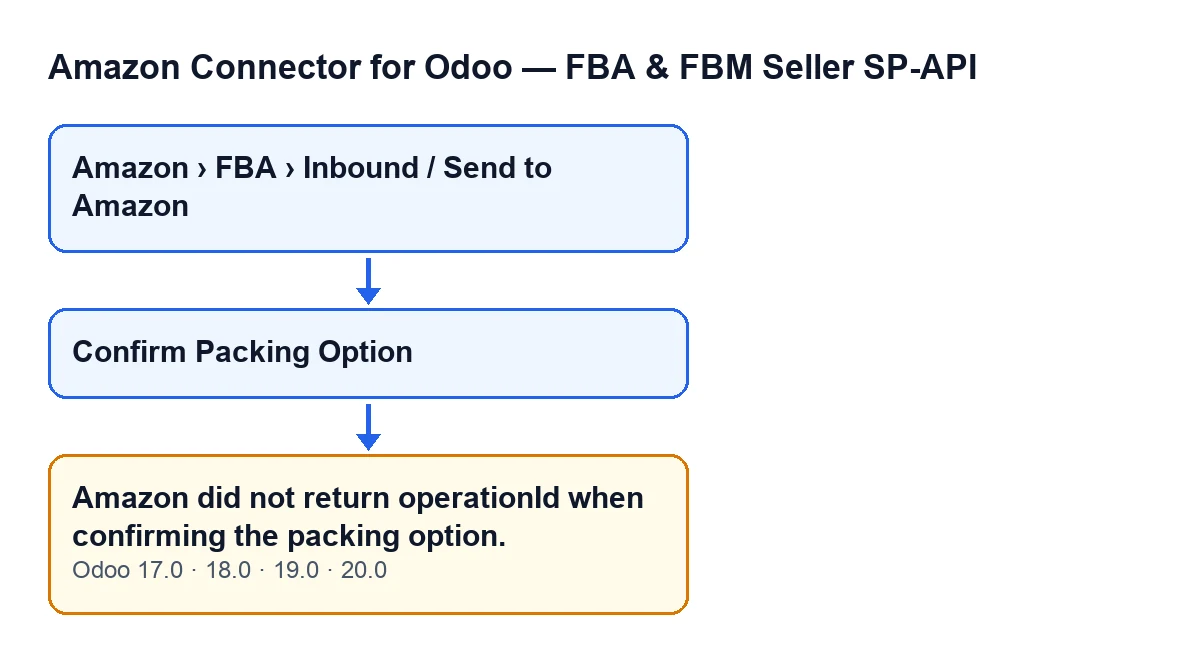

What the method does before it reaches the message
To know where you are, this is the order of the method according to the Odoo 20.0 code:
- It checks your access for this action before doing anything else.
- It checks that the plan already exists on Amazon and that a packing option has been chosen; if either is missing, the action stops before calling Amazon.
- It asks Amazon to confirm that option for that plan.
- It reads the
operationIdfrom the reply. This is where this message appears if it is missing. - Only if there is an identifier: it saves it, moves the plan to a packing-confirmed state, waits for the operation to finish on Amazon and reloads the packing options.
Because the message appears before that saving step, the form stays as it was and the wait for the operation never starts.
Checklist
Before pressing the button
- Open the plan form from
Amazon › FBA › Inbound / Send to Amazon. Each part of the menu (Amazon,FBAandInbound / Send to Amazon) asks for theViewerpermission; if you lack it, you do not see that part. - Look at the
Selected Packing Optionfield. TheConfirm Packing Optionbutton is hidden when that field is empty, so with the default values it is not shown. This message appears when you press the button, not before. - Remember that the method checks your access first. A message about missing access is a different message from this one.
- Remember too that if the plan has not been created on Amazon, or no option has been chosen, the action stops before calling Amazon, that is, before it can reach this message.
When you press it
- Press
Confirm Packing Optiononce and wait for Odoo to respond. - If there is no error, check that the form has moved on: the module saves the operation identifier and changes the state of the plan.
If the message appears
- Read it for what it is: Amazon's reply carried no usable
operationId. The module saved no identifier and did not change the state of the plan. - Reload the form and confirm that
Selected Packing Optionstill has a value. As long as it does, the button stays visible. - Press the button again. Each press runs the whole method again, including the confirmation request to Amazon.
- If the message keeps coming back, note which plan it was and at what time, and tell whoever manages the connection.
- If you work with an Odoo consultant, pass them that note together with the exact text of the message.
After it works
- Check that the packing options have been reloaded on the form: it is the last thing the method does when everything has gone well.
- If you see a message different from this one, read it in full: it is not the
operationIdmessage, because that one appears before the wait for the operation.
What it means, and what it does not tell you
For the module, the message means it has no identifier with which to follow the confirmation operation. Without one there is nothing to wait for and nothing to save, so the method stops at that point.
The text does not distinguish between an empty reply, a blank identifier or no reply at all: the code treats them the same and raises the same message. As the message is identical in all those cases, the useful thing is to check what the form holds, press the button again and note the plan and the time if it persists.
How the message looks in each language
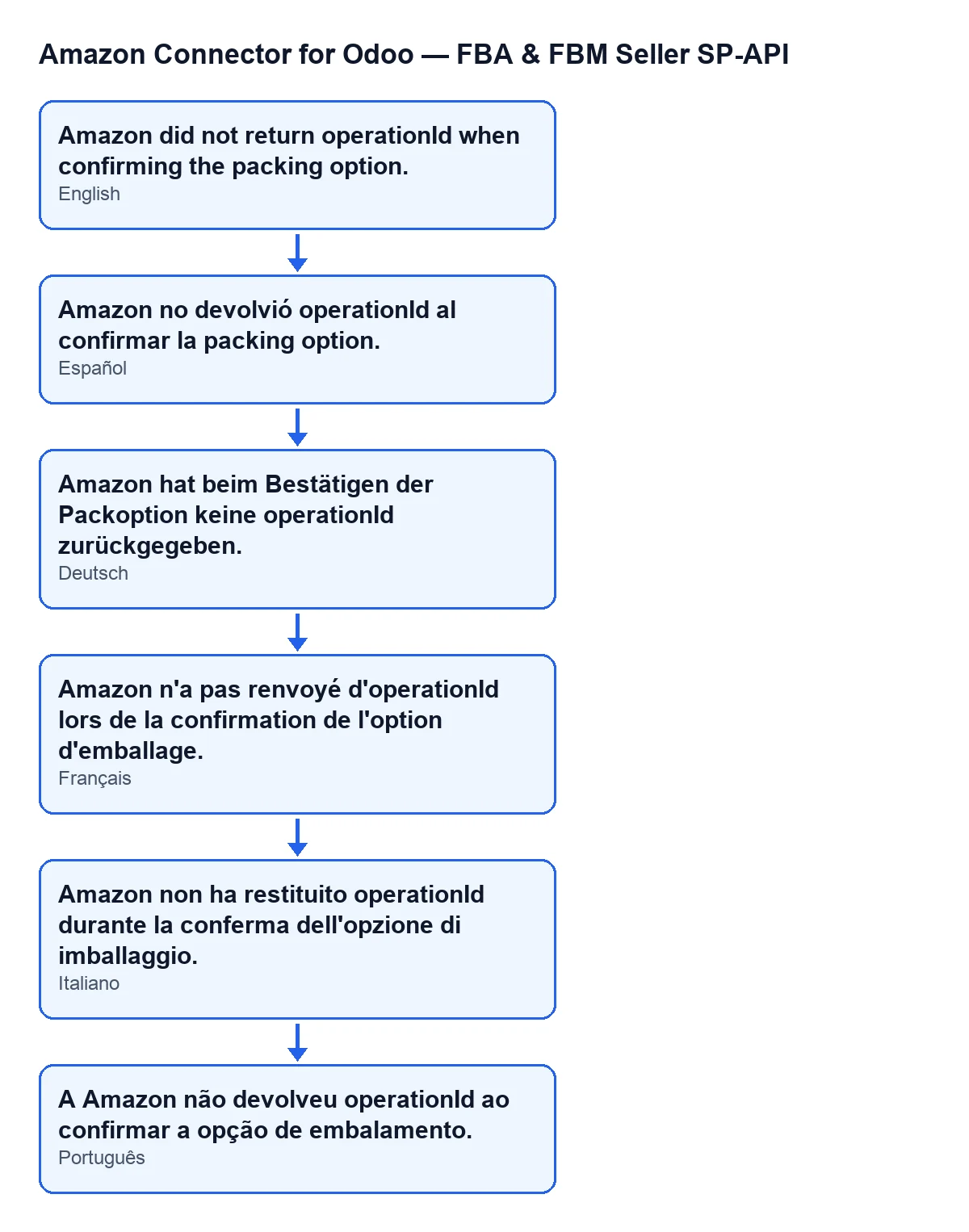
The module's texts come translated. With Odoo in English you see Amazon did not return operationId when confirming the packing option.; the diagram below shows how it is published in Spanish, German, French, Italian and Portuguese.
Versions
The module is published on Odoo Apps for Odoo 17, 18, 19 and 20. The message is in the published code of all four versions, and the view condition of the Confirm Packing Option button (hidden when Selected Packing Option is empty) is the same in all of them. The order of the method described above comes from the Odoo 20.0 code.
How FlexigoTech can help
FlexigoTech implements Odoo 17, 18, 19 and 20 and develops connectors and bespoke integrations. If you are setting up shipments to Amazon from Odoo and would like us to look at your case, see the module page and tell us what you see on your form.
Keep reading
Checked in the connector's source code (version 20.0) and the linked sources
Sources
- Module source code: flexigobe_amazon_seller_connector 20.0 (8576afa5): models/amazon_spapi_inbound_plan.py
- Module source code: flexigobe_amazon_seller_connector 20.0 (8576afa5): views/amazon_spapi_inbound_plan_views.xml
- apps.odoo.com/apps/modules/20.0/flexigobe_amazon_seller_connector
- flexigotech.com/en/services.html