

 Español
 Català
 Deutsch
 Français
 Português
 Italiano
 Nederlands
 Polski
When you need to press it and where it is
Do I need to press the button, or does FBA inventory sync by itself?
It syncs by itself. The scheduled task Amazon SP-API - Sync official FBA inventory is active once the module is installed and runs every 30 minutes. It goes through the active accounts that have FBA inventory sync turned on and runs, for each one, the same read as the button. The button is there for when you want that read now, without waiting for the next pass of the task.
Where is the button and when is it visible?
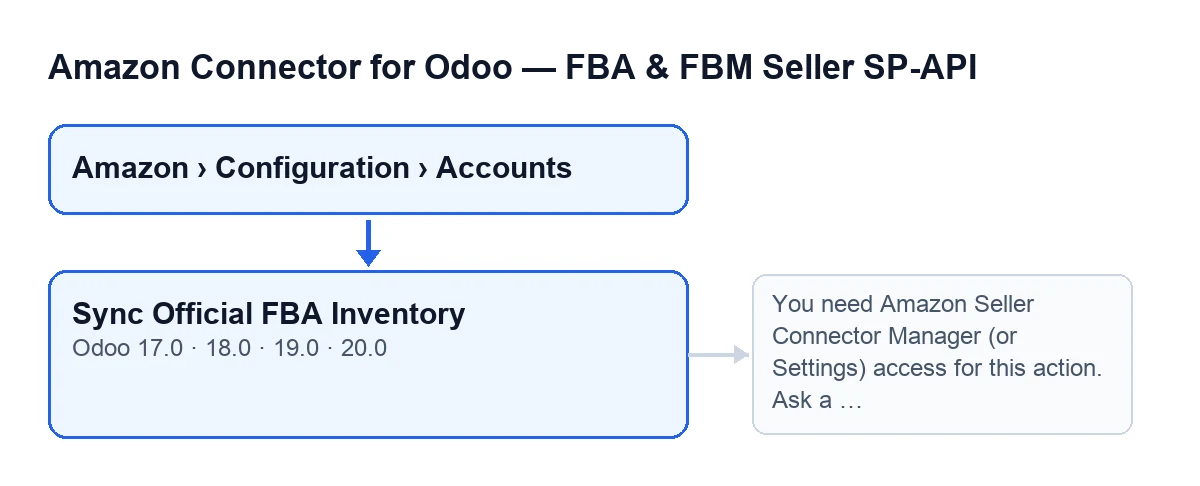
It is on the Accounts screen, reached through Amazon › Configuration › Accounts. Each stretch of the menu asks for a permission, and if you lack one you do not see that stretch: Amazon asks for Viewer, while Configuration and Accounts ask for Manager. The Sync Official FBA Inventory button does not depend on any state or tick box: it is always visible, and it is present in the Odoo 17, 18, 19 and 20 branches.
How does the button differ from the scheduled task?
They reach the same sync method, but with some differences. The button runs it with a manual origin and the task with a scheduled-task origin, and the stored result says which it was. Before syncing, the button checks permissions and stock configuration, whereas the task calls the sync directly. Also, when the Reports API is in cooldown or the report does not finish properly, the button leaves the result as a note in the account's chatter; in those cases the task only stores it on the account. If the task fails on one account, the module logs the error, stores it as that account's result and moves on to the next.

What the button does, in order
What follows comes from the published Odoo 20 code.
What does it check before talking to Amazon?
Permissions first, then the stock configuration. On permissions: except for runs with superuser privileges, you must belong to the connector's Manager group or to the Settings group. If you belong to neither, it stops with the message shown further down. The module then checks that you can write to the account; if you lack that permission, Odoo stops the action too. On stock: if the Apply official FBA stock to Odoo locations tick box is on and the FBM stock source location is missing, the account leaves a warning in its chatter. It does not stop the button: the sync carries on.
What does it ask Amazon for, and how does it wait for the answer?
Unless the Reports API is in cooldown (see the next question), it creates an inventory report of the type configured on the account and keeps asking Amazon for its status until the report is done, cancelled or fatal, or until the attempts run out. If no values are configured, the code uses twelve attempts with ten seconds between them. When the report finishes properly, the module moves on to its document; if Amazon marks it as done but with no document, that is noted in the result.
What happens if the Reports API is in cooldown or the report does not finish?
If the module detects that the Reports API is in cooldown, it does not create the report: it notes the cooldown in the result and, in some cases, the result adds Reports API in cooldown. Retrying the current read via getInventorySummaries. If it creates the report but Amazon cancels it, returns a fatal error or does not finish within the waiting time, the result records the report ID and its status together with the matching notice (for example Report polling timed out. Try again in a few minutes.) and, in some cases, adds Reading current FBA stock via getInventorySummaries (fallback). In all these cases the account stores the date and result, and with the button a note is also left in the chatter.
What changes in Odoo and which error can appear
Does the button change the stock in my Odoo locations?
That depends on the Apply official FBA stock to Odoo locations tick box, found on the account form, in the FBA & Stock tab, Locations group. Its help reads: If enabled, updates the configured Odoo locations to the official Amazon quantity. In the code it is off by default, so it is up to you whether to turn it on, and it is worth checking first whether the account leaves you the warning about the FBM stock source location.
What does the reimbursement audit add?
The FBA reimbursement audit tick box is on the account form, in the FBA Reports (opt-in) tab, Reimbursement Claim Audit (find money Amazon owes you) group. It is off by default. Its help reads: OFF by default. When ON, the inventory-ledger sync also accumulates lost/damaged/found events and the audit cross-checks them against settlement reimbursements, surfacing the units Amazon still owes (with estimated value and claim deadline). Read-only analysis.
Which error can it give when I press the button, and how do I fix it?
One of the messages that can stop the button is this: You need Amazon Seller Connector Manager (or Settings) access for this action. Ask a manager to grant Manager access. It appears when you press Sync Official FBA Inventory and your user belongs neither to the connector's Manager group nor to the Settings group. To fix it, ask whoever administers Odoo to give you the connector's Manager access, or use a user that already has it.
What you need to use it
The module is a one-off purchase per Odoo version (published for Odoo 17, 18, 19 and 20) and needs a FlexigoTech Cloud subscription, Connector plan: €49 a month or €490 a year, excluding VAT. The connection to Amazon goes through FlexigoTech Cloud. There is more detail on the module page and on the Odoo Apps listing.
If you are implementing Odoo and want to decide carefully which locations should receive FBA stock, or you need a bespoke integration, FlexigoTech implements Odoo 17, 18, 19 and 20 and builds connectors and integrations.
Keep reading
Checked in the connector's source code (version 20.0) and the linked sources
Sources
- Module source code: flexigobe_amazon_seller_connector 20.0 (8576afa5): views/amazon_spapi_account_views.xml
- Module source code: flexigobe_amazon_seller_connector 20.0 (8576afa5): models/amazon_spapi_account.py
- apps.odoo.com/apps/modules/20.0/flexigobe_amazon_seller_connector
- flexigotech.com/precios.html
- flexigotech.com/en/services.html