

 Español
 Català
 Deutsch
 Français
 Português
 Italiano
 Nederlands
 Polski
What you see in Settings once the module is installed
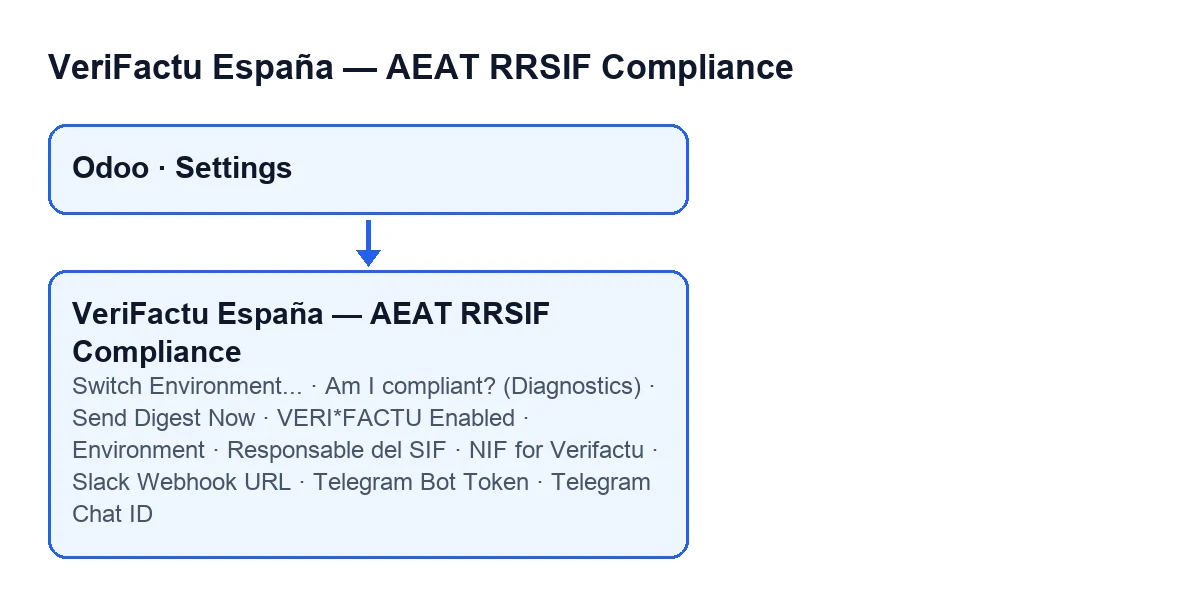
The module extends the standard Odoo Settings. A Verifactu / SIF Compliance section appears in Settings, with fields grouped into blocks and several buttons. Only users with the module's Verifactu management permission see the fields.
The module is published on Odoo Apps for Odoo 17, 18, 19 and 20. The buttons described here always show, with no condition attached, in Odoo 17, 18, 19 and 20.
The fields, block by block
The section mixes two kinds of data: some belong to the company and others are general system parameters. The table covers some of the fields in the section and compares them using what each field's help says.
| Block | Field | Scope | What its help says |
|---|---|---|---|
Chain Configuration | VERI*FACTU Enabled | Company | Enable VERI*FACTU submission to AEAT for this company. |
Chain Configuration | Environment | Company | Choose between the AEAT test (homologation) endpoint and the production one; read-only here |
Chain Configuration | Responsable del SIF | Company | Named Responsable del SIF per RRSIF art.13. |
Chain Configuration | NIF for Verifactu | Company | NIF used in the company's Verifactu records; if left blank, the NIF on the company record is used |
Chain Configuration | Instance Secret | General | Set once and never changed; it is used to derive the AES-256-GCM certificate encryption key |
Chain Configuration | SIF Producer NIF | General | See the next section |
Multi-channel Alerts (FR-032) | Slack Webhook URL | General | Slack incoming webhook URL for critical alerts. |
Multi-channel Alerts (FR-032) | Telegram Bot Token | General | Telegram Bot Token (format: botTOKEN). |
Multi-channel Alerts (FR-032) | Telegram Chat ID | General | Telegram Chat ID to receive alerts. |
Multi-channel Alerts (FR-032) | Teams Webhook URL | General | Microsoft Teams incoming webhook URL for critical alerts. |
Privacy / GDPR | DSAR Wizard Enabled | General | Enable DSAR wizard for Privacy Officer role. |
Privacy / GDPR | DPO Contact Email | General | Data controller contact email shown in erasure refusal documents |
The fields in the table sit inside the Verifactu / SIF Compliance section of Settings, in the block named in the first column. Environment deserves a note: it is read-only, and its help points to the Switch Environment... button, which according to that help asks you to type the company NIF to confirm.
The software producer's NIF
The SIF Producer NIF field carries two texts. The setting says it is the NIF of the software producer (FlexigoTech), sent in every AEAT envelope and required before any real (non-test) submission. Its help adds that it is sent in SistemaInformatico/NIF of every record and that, if you leave it blank, the producer of this module is sent (Flexibles y Accesorios Gobe S.L., B56727993). Before going to production, check what is in this field.
The buttons: when they show and what they do
| Button | When it shows | What it does |
|---|---|---|
Switch Environment... | Always, in Odoo 17, 18, 19 and 20 | It is the way to change Environment from Settings; according to the field's help, it asks you to type the company NIF to confirm. It uses the same action as the company form, so the two cannot define it differently |
Am I compliant? (Diagnostics) | Always, in Odoo 17, 18, 19 and 20 | Opens Verifactu Diagnostics in a pop-up, with the company from Settings as the default. The code describes it as a read-only panel that only reads state |
Send Digest Now | Always, in Odoo 17, 18, 19 and 20 | Queues the compliance digest right away, even if everything is green (it skips the attention threshold) |
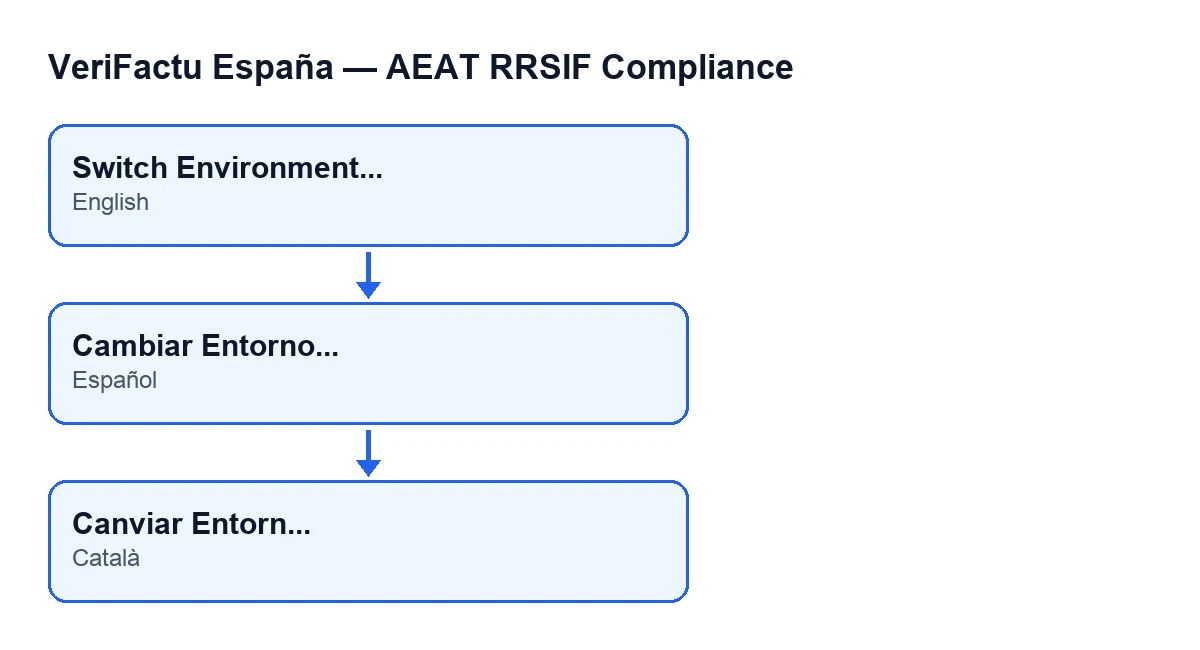
The first button reads Switch Environment... in English, Switch Environment... in Spanish and Canviar Entorn... in Catalan, as the diagram shows.
The compliance digest: automatic first, button second
The normal route does not go through the button. The scheduled task Verifactu: Compliance Digest Email runs once a day and is active when the module is installed. The Send Digest Now button is for launching it by hand, with differences worth knowing.
| Scheduled task | Send Digest Now button | |
|---|---|---|
| When it runs | Every day; it first checks the cadence set in a system parameter: if weekly, it only goes ahead on Mondays; otherwise every day | When you press it, ignoring the cadence |
| Attention threshold | It applies it: by default, each recipient only gets an email if their own scope needs attention (amber or red) | It skips it: even if everything is green, a digest is produced |
| Recipients | One email per recipient, covering only that recipient's companies; addresses are not shared | The same |
| When it sends nothing | If there is no recipient, if the cadence is weekly and it is not Monday, if a recipient has no companies in their scope, or if their scope does not need attention while the threshold is active | If there is no recipient or if a recipient has no companies in their scope |
| What you see on pressing | Not applicable: nothing is pressed | A Compliance digest sent notice with the message The compliance digest has been queued for delivery. |
The email is queued, not sent at that instant, and the notice appears after the send is called, without checking beforehand whether there are recipients. If you see the notice but no email arrives, bear in mind that the code sends nothing when it finds no recipient, nor to a recipient who has no companies in their scope.
When each thing acts
- The fields store values; they do not run anything by themselves.
Switch Environment...is the route for changing the environment from Settings, andAm I compliant? (Diagnostics)opens the panel for checking the state.- The scheduled task checks every day whether the digest is due, according to the cadence and the attention threshold; the button queues it on demand.
How FlexigoTech can help
If you are implementing Odoo and want these settings configured for your company or companies, FlexigoTech implements Odoo 17, 18, 19 and 20 and builds custom connectors and integrations. You can see the module on its Odoo Apps page.
Keep reading
Checked in the module's source code (version 20.0) and the linked sources
Sources
- Module source code: flexigo_spain_verifactu 20.0 (e3fe1c0d): models/res_config_settings.py
- Module source code: flexigo_spain_verifactu 20.0 (e3fe1c0d): views/res_config_settings_views.xml
- Module source code: flexigo_spain_verifactu 20.0 (e3fe1c0d): models/verifactu_cadena.py
- apps.odoo.com/apps/modules/20.0/flexigo_spain_verifactu
- flexigotech.com/en/services.html