

 Español
 Català
 Deutsch
 Français
 Português
 Italiano
 Nederlands
 Polski
What the B2Brouter API asks for
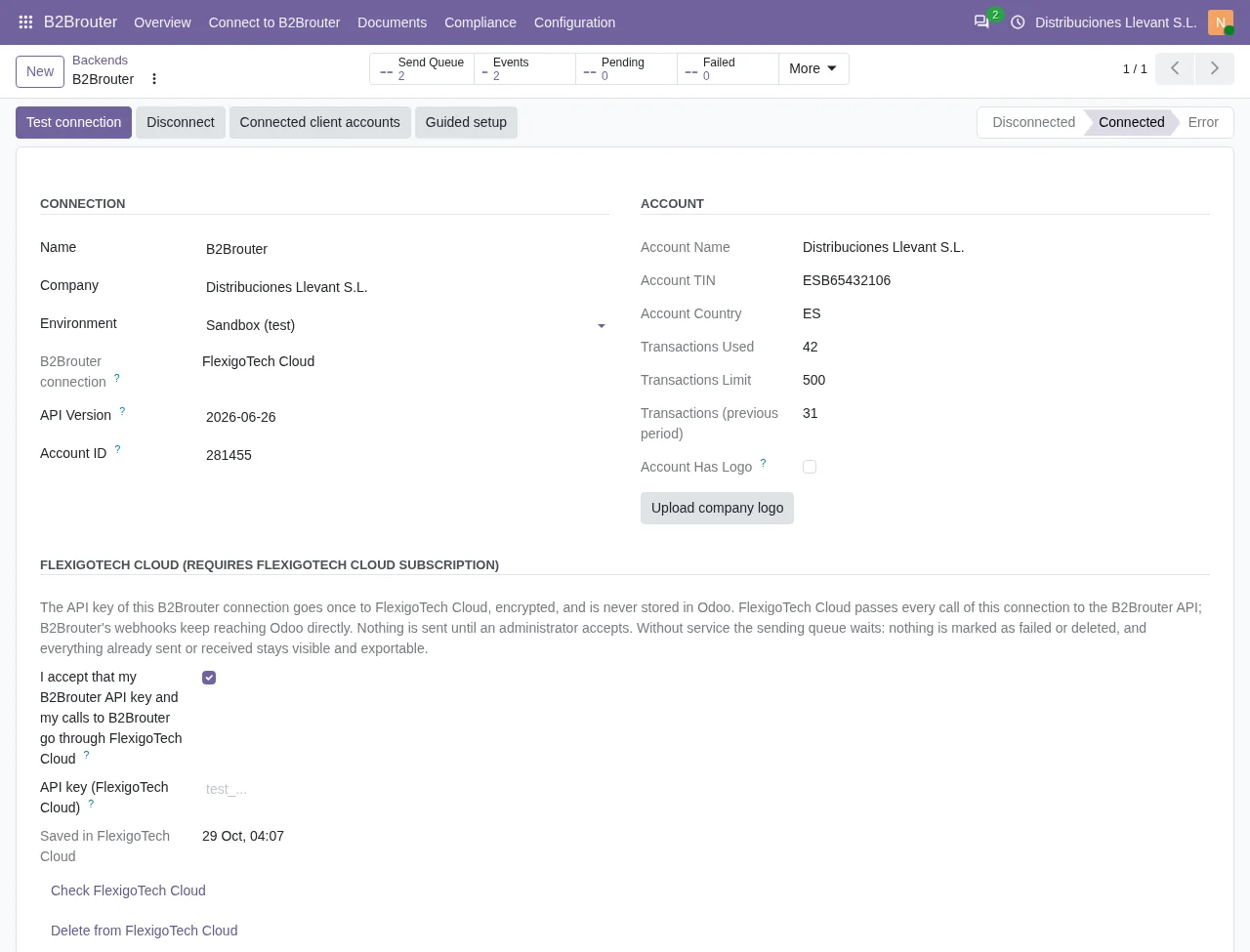
To use the B2Brouter API you need a B2Brouter account and its API key. You copy the key from the Developers tab of the same B2Brouter environment you are going to work in. A test key does not work in production, and the other way round.
Every call also carries the API version. The connector pins it on every request: ‘X-B2B-API-Version: 2026-06-26’. If you change that value in Odoo, it has to be a date in the YYYY-MM-DD format. Any other format is refused when you save.
The three environments and their addresses
B2Brouter has three environments. Production and sandbox use the same address, https://api.b2brouter.net. The key prefix decides which one a call reaches. Staging has its own address, https://api-staging.b2brouter.net.
The connector checks the prefix when you save the key and again before every request:
- In production it accepts keys starting with prod_ and the older keys with no prefix.
- In sandbox it only accepts keys starting with test_.
- In staging it accepts stag_ and test_.
The reason is simple. A production key pasted into sandbox would send real invoices without anyone noticing. The connector stops it first.
In sandbox, sends are simulated, payments are disabled and PDF previews carry a ‘test invoice’ watermark. It is the place to try your setup without sending anything for real.
How Odoo connects to the API
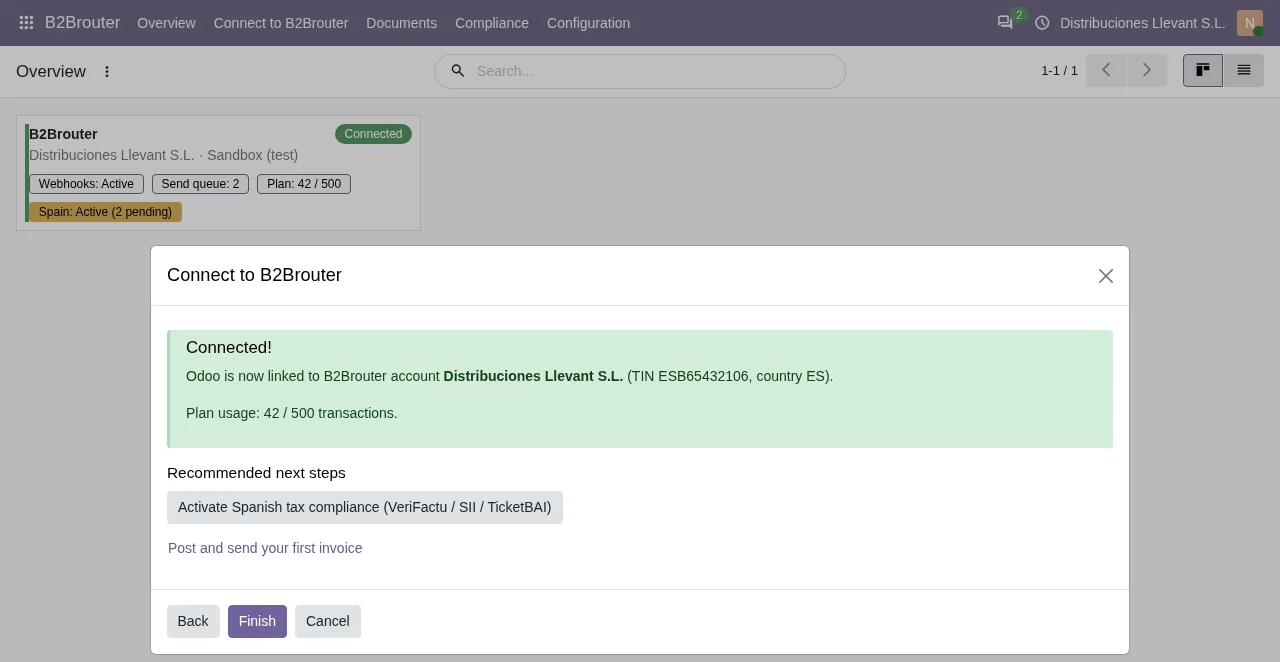
The connector comes with a wizard under B2Brouter › Connect to B2Brouter. Its steps are Welcome, Environment, Get your API key, Connect and Done.
- Install the connector on Odoo 17, 18, 19 or 20 and activate the FlexigoTech Cloud subscription. The connector needs it to work.
- Choose the environment: production, sandbox or staging.
- Copy the API key from the Developers tab of that same environment and paste it.
- As an administrator, give your consent. FlexigoTech Cloud keeps the key encrypted and only receives it after that consent.
- Test the connection. If the key is missing, Odoo tells you before calling B2Brouter.
Signed webhooks and scheduled jobs
B2Brouter reports changes with webhooks. The connector receives them on an address of its own for each registration, with a token nobody can guess. It also checks the HMAC-SHA256 signature of every notification against that registration's secret. What arrives is listed under B2Brouter › Documents › Webhook Events.
Webhooks do not replace the periodic checks. The connector runs these jobs:
- Send the document queue, every 5 minutes.
- Process the webhook events, every 5 minutes.
- Poll the invoice states, every 15 minutes.
- Refresh the code lists, every week.
The code lists come from the API itself: schemes, document types, countries, currencies, invoice states, languages and transport types.
When something fails: the request ID
Every B2Brouter response carries a request identifier. The connector stores the last one in the Last Request ID field of the connection. If you open a ticket with B2Brouter support, give them that value. They can find your call without you having to reproduce the error.
What you need and what is not included
You need your own B2Brouter account and its API key. B2Brouter's fees are not included. The connector is on Odoo Apps for Odoo 17, 18, 19 and 20, and it works with the FlexigoTech Cloud subscription. The details of the integration are on the connector page.
Can I try the B2Brouter API without sending real invoices?
Yes. Choose the sandbox environment and use a key starting with test_. Sends are simulated and the PDFs carry the test invoice watermark.
Where is the API specification?
The connector works with version 2026-06-26. Its OpenAPI specification is published on app.b2brouter.net.
Does Odoo store my B2Brouter key?
FlexigoTech Cloud stores it, encrypted, and only after an administrator gives consent on that connection.
Do I have to write code to use the API?
No. The connector makes the calls, signature and version included. You choose the environment and paste the key.
Keep reading
Checked in the connector's source code (version 20.0)
Sources
- Module source code: b2brouter_connector 20.0 (dc5ea5d4): __manifest__.py
- Module source code: b2brouter_connector 20.0 (dc5ea5d4): static/description/index.html
- Module source code: b2brouter_connector 20.0 (dc5ea5d4): README.md
- Module source code: b2brouter_connector 20.0 (dc5ea5d4): models/fgt_cloud.py
- Module source code: b2brouter_connector 20.0 (dc5ea5d4): models/b2brouter_backend.py
- Module source code: b2brouter_connector 20.0 (dc5ea5d4): wizards/b2brouter_setup_wizard.py
- Module source code: b2brouter_connector 20.0 (dc5ea5d4): views/b2brouter_menus.xml
- Module source code: b2brouter_connector 20.0 (dc5ea5d4): data/ir_cron.xml