

 Español
 Català
 Deutsch
 Français
 Português
 Italiano
 Nederlands
 Polski
The detail of each pass corresponds to the Odoo 20.0 code. The task is in every published branch of the module (17.0, 18.0, 19.0 and 20.0).
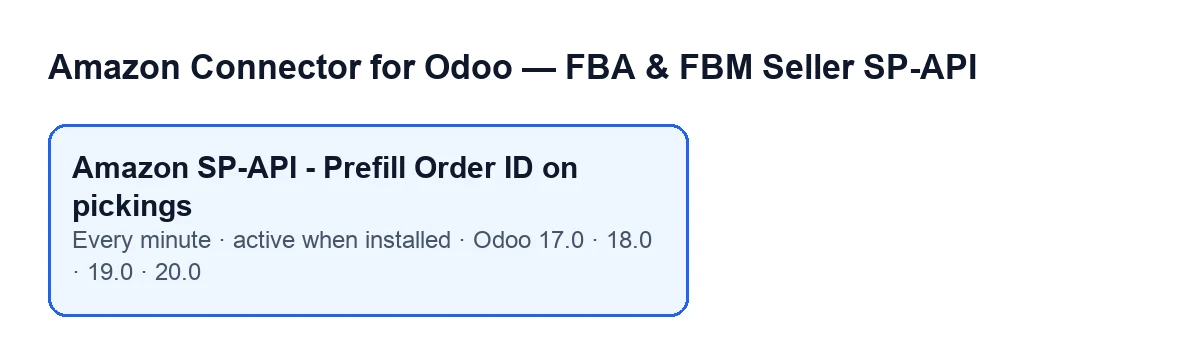
Amazon SP-API - Prefill Order ID on pickings, which runs every minute and is active on installation, in Odoo 17.0, 18.0, 19.0 and 20.0. The labels are in English, as in the code.What the task does, detail by detail
It runs every minute and is active on installation
The task Amazon SP-API - Prefill Order ID on pickings runs every minute and is active as soon as the module is installed. It works on pickings, which are Inventory transfers. In Odoo 17.0 the task is configured to repeat without end.
On each run the task asks to process 200 pickings at most. That is the ceiling for one pass, not for the whole database: whatever falls outside it is left for the next pass.
Each pass looks at 200 pickings at most, newest first
On each pass the task searches for pickings that are not cancelled and have either the Amazon Order ID or the Amazon SP-API Account empty. It sorts them from newest to oldest and keeps 200. A picking that already has both fields filled in does not enter the search.
Pickings the task cannot fill in still meet that condition, so they come back into the next pass. Because the search starts with the newest and stops at 200, the oldest ones only get in when there is room.
If it cannot work out the Amazon order ID, it touches nothing
For each picking, the module tries to work out its Amazon order ID. If it cannot, it moves on to the next picking without writing anything: neither the ID nor the account. In that case it does not even try to work out the account.
It only fills gaps and does not correct what is already there
If the Amazon Order ID is empty, the task writes the one it has worked out. If the Amazon SP-API Account is empty, it tries to determine the account and writes it if it obtains one. Anything that already has a value is left alone: an ID or account that is already filled in will stay as it is, even if it is not the one the task would have set.
The account can stay empty even though the ID has been filled in
The task only writes the account if it obtains one. If the ID has been worked out but the account has not, the ID is saved and the account stays empty. That picking still meets the search condition, so the task will try again on the following passes.
It ends by counting how many pickings changed
Before filling anything in, the task notes the ID (without spaces at either end) and the account of each picking. Afterwards it compares them: a picking counts as updated if its ID or its account differs from the one noted, and each picking is counted once even if both change. That total is what the pass returns.
Where to see the result
Open the picking form (Inventory transfer) and look for the group Amazon SP-API. The fields Amazon Order ID and Amazon SP-API Account are there. Each of those two fields carries a visibility condition that hides it on some pickings, so you may not see them on every picking.

If it does nothing: what to check
- That the scheduled task is still active: it is active when the module is installed.
- That the picking is not cancelled: cancelled pickings are left out of the search.
- That the picking does not already have both the
Amazon Order IDand theAmazon SP-API Accountfilled in: in that case it does not enter the pass and there is nothing to fill. - That the module can work out the order ID for that picking: if it cannot, it writes neither the ID nor the account.
- That there are not many recent pickings in that situation: each pass looks at 200 at most, starting with the newest.
- If the ID is there but the account is not, the task has not been able to determine the account; it will try again on the following passes.
The task's name depending on your Odoo language
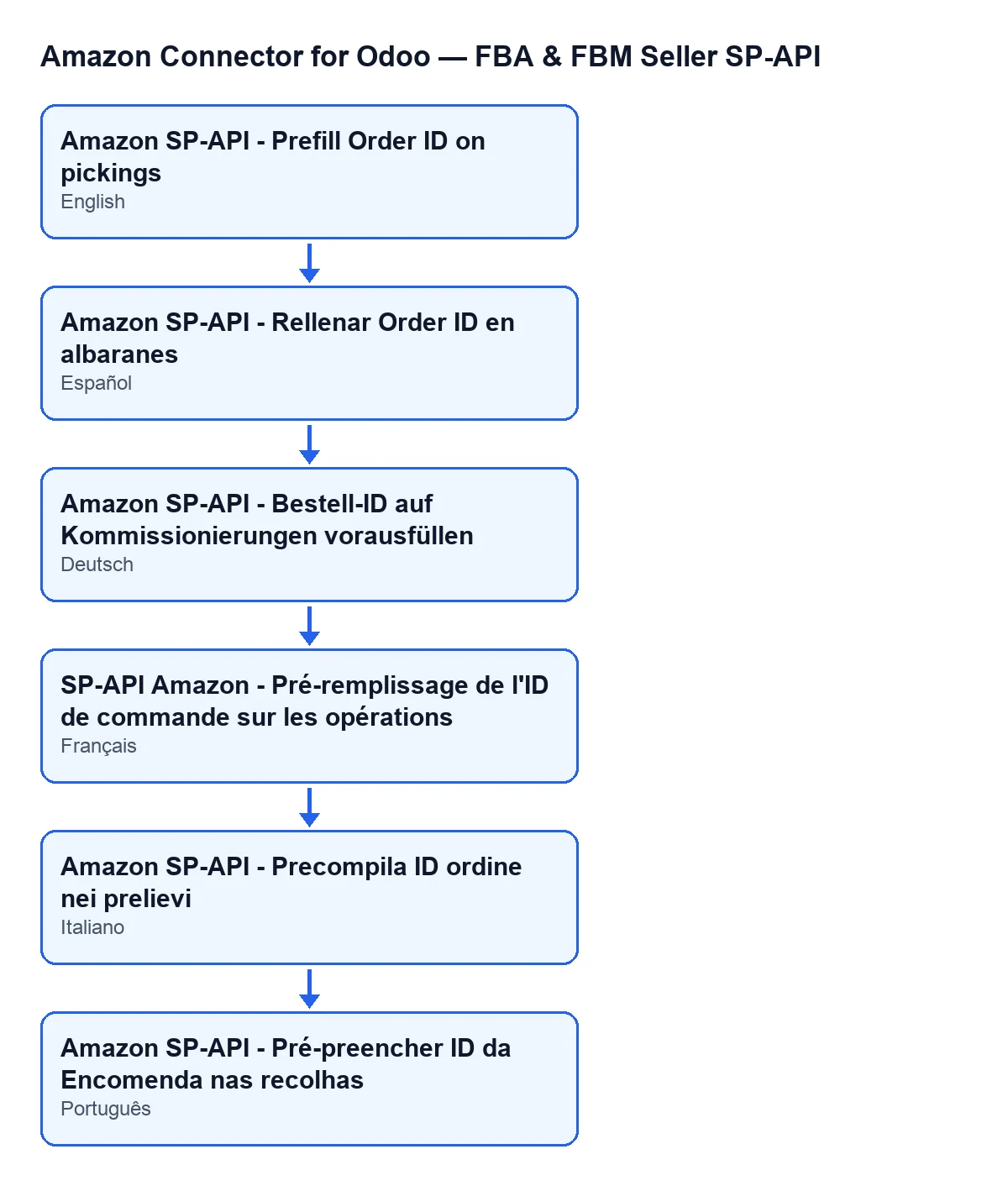
With Odoo in English the task is called Amazon SP-API - Prefill Order ID on pickings. The module ships the name translated into other languages, so if your Odoo is set to another language, the name changes with it. The diagram below brings together some of those names.
Price and how FlexigoTech can help
The module is published on Odoo Apps for 17.0, 18.0, 19.0 and 20.0 and is a one-off payment per version; it also needs the FlexigoTech Cloud subscription, Connector plan: €49 per month or €490 per year excluding VAT, with up to 3 accounts of the platform. The connection goes through FlexigoTech Cloud, which stores the credentials encrypted, monitors synchronisation and emails you if it fails. Without a subscription, or with the service suspended, what the subscription provides stops; your data stays in your Odoo.
FlexigoTech implements Odoo 17, 18, 19 and 20 and builds connectors and custom integrations. If you want to see the whole module, here is the module page.
Keep reading
Checked in the connector's source code (version 17.0 and 20.0) and the linked sources
Sources
- Module source code: flexigobe_amazon_seller_connector 20.0 (8576afa5): data/ir_cron_data.xml
- Module source code: flexigobe_amazon_seller_connector 17.0 (165f66af): data/ir_cron_data.xml
- Module source code: flexigobe_amazon_seller_connector 20.0 (8576afa5): models/stock_picking.py
- apps.odoo.com/apps/modules/20.0/flexigobe_amazon_seller_connector
- flexigotech.com/precios.html
- flexigotech.com/en/services.html